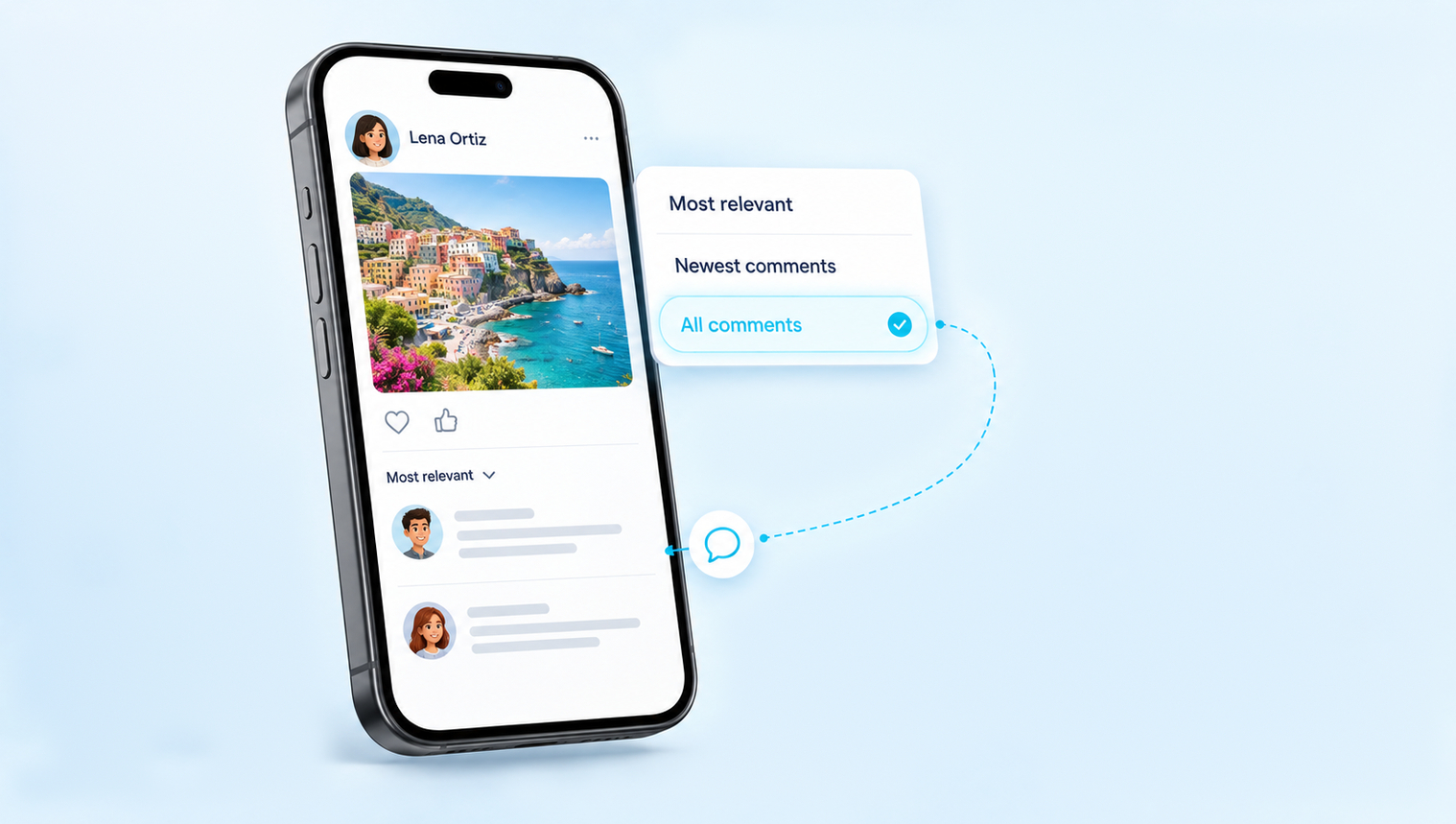
Some people prefer to Turn off comments on their posts just to avoid trolling and criticism. The comments can also be turned off for privacy concerns, it totally depends on how comfortable you feel with the enabled comments on your Facebook. People often inquire how one can turn off comments on Facebook in an easy possible way. This Article has thoroughly explained the procedure so let’s dig into it.
How To Turn Off Comments On Facebook Post in 5 Steps :
Step 1: Login to your Facebook account.
Step 2: Open the post for which you want to turn off the comments.
Step 3: Tap on the three dots in the top right corner of the post.
Step 4: Click on “Who can comment on this post?”
Step 5: A list of options will be displayed; tap on who you want to comment and whom not.
Related: Buy Facebook Comments from $2.99!
Why are Comments Important ?
Comments are one of the easiest ways to interact without being directly involved in a conversation. We Suppose you have posted something and your crush posted a comment on it. Woah ! You both are interacting with each other now, and it can pave the way for the future. The comments can be compliments or simply criticisms, where people like to do leg pulling on each other.
Keeping in view this issue, Facebook has made the users independent and they ask for How to Turn Off Comments on Facebook Post. They are independent to select who they want to allow to comment on their posts and whom not. You can make adjustments to the settings of a post and restrict users from commenting.
How to Make a Post on Facebook
Well, you are an extrovert and love to share what is going on in your life lately. You believe that posting on a daily basis on Facebook makes you grow your friend circle. You enjoy it when your friends give you nice compliments and appreciate you for being so active on social media. Staying active on social media is an indication that you are really a social human.
It’s been a long time that you posted something on Facebook. Recently, there has been a significant event that happened in your life, and you want to share it with your friends.
Suppose you want to post something randomly and want your friends know you are alive.
Here is how you can do a Facebook post from your Facebook account:
STEPS :
Step 1: Connect your device to the internet and open your Facebook account.
Step 2: Click on the menu bar at the bottom right corner of the screen.
Step 3: Tap on your profile.
Step 4: Scroll down and head to ‘Your Posts’
Step 5: Click in the box, and a list of options displays.
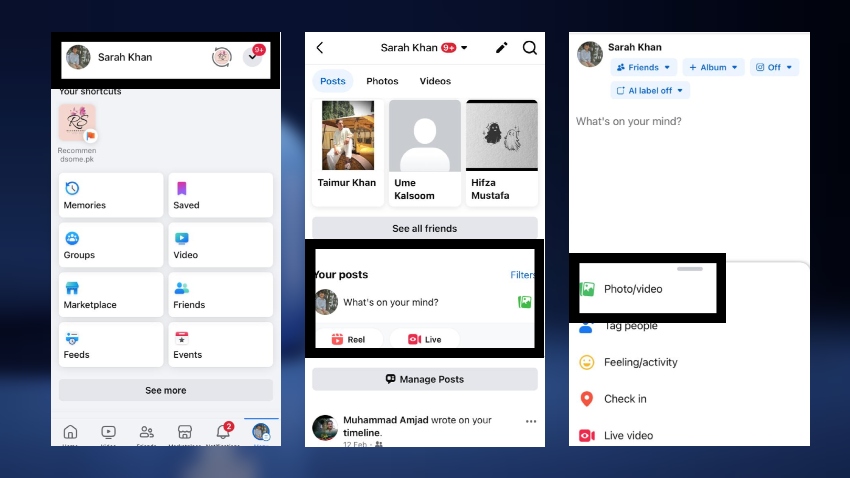
Step 6: Tap on Photos/Video.
Step 7: Choose a photo from your gallery and tap Done at the top right of the screen.
Step 8: Add a caption of your own choice, or it is optional.
Step 9: Tap on Next at the top right of the post.
Step 10: In the next step, manage the privacy settings.
Step 11: Once you do it, click on SHARE at the top right of the screen.
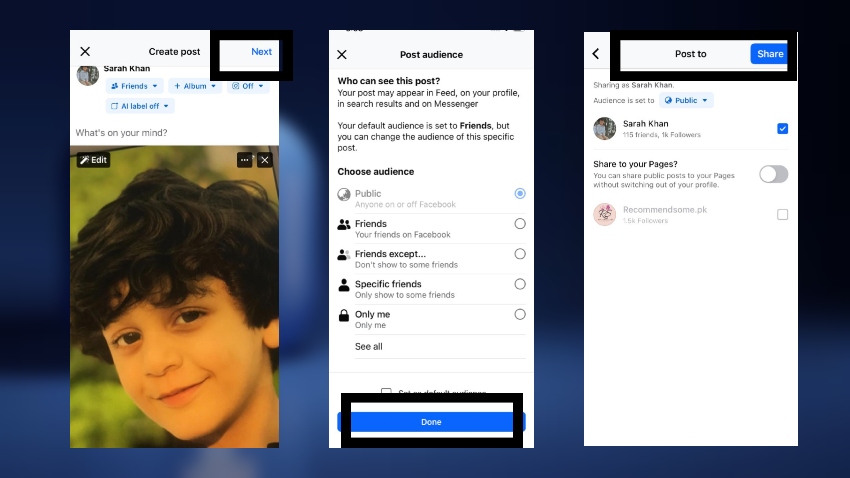
Here you go. You have added a new post to your Facebook account. If it’s a video post, you can even buy Facebook video views to boost its reach, encourage engagement, and make it more visible across the platform.
If your added post is visible to the public, then all of the Facebook users can react and comment on it, but if you have added a restriction, then only your friends can comment and react to the particular post. To increase engagement further, some users even choose to buy Facebook reactions to make their posts appear more active and appealing.
How to Turn Off the Comments
Imagine you have already posted something and do not want anyone to leave a comment on it, so you decide to turn off the comments on Facebook posts. It is as easy as adding a post to Facebook.
It is completely your choice whether you want people to comment on your post or not. Some people do not turn off the comments, even if they get more hate than love, while others are not comfortable with even a single hateful comment, so they turn off the comments on Facebook posts. Before moving towards turning off the comments, it is really important to understand a few things.
There is a profile locking feature on Facebook; if you have locked your profile, you’ll not be able to do so.Keep in mind that you can turn off the comments on Facebook posts only if your post is public. Otherwise, you will not be entertained by such features.

Make sure that it is set on public in the privacy settings. Let’s learn how to turn off comments on Facebook posts through easy steps:
STEPS :
Step 1:
Open your Facebook profile and scroll to the post for which you want to turn off the comments.
Step 2:
Then click on the three dots in the top-right corner of that post.
Step 3 :
Once you click on the dots, a list of options pops up on the screen.
Step 4:
Select ‘Who Can Comment on My Post’.
Step 5:
From there, you can select manually. Click on ‘Profiles and Pages you Mention’, and this way you will select the profiles and pages by mentioning their account names who can comment on your post.
Step 6:
Tap on ‘Done’ because you are all set to go.
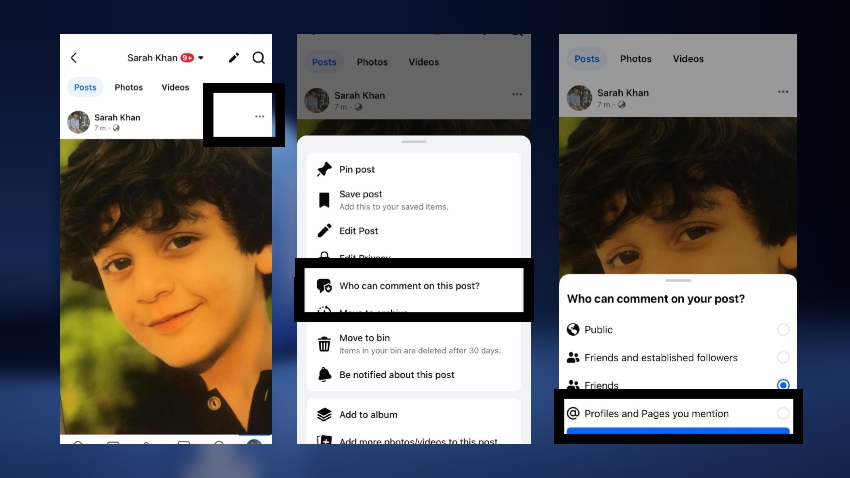
Look ! How easy is it to add a new post to your Facebook account and then manage the comments on it? This article is all about how to turn off the comments on Facebook posts in the easiest possible ways.
It has been observed that some people neither want their friends to see the posts nor want to comment on them. Simply put, they do not want that post to be visible on their timeline. What they do is just archive that post; in this way, the post moves to the recycle bin, and nobody can come across it or leave a comment on it.
Conclusion :
You can easily turn off the comments on your Facebook post by making changes to the settings of your post. Along with it, you can also pin a comment on that post. You can also make some comments visible to all other users on your profile and that post, while some other comments can be hidden by the owner. If you want to boost engagement even further, you can also buy Facebook post likes to increase visibility and interaction on the posts you keep open.