Comments on facebook are the engagement boosters, that are one of the effective ways to engage with each other. Comments enable you to promote real-time interaction with your followers. Most of the users post on facebook on a daily basis because they consider it the best way to engage.
Sometimes, you don’t want the viewers to leave a comment on your posts. In order to avoid such a situation, Facebook has introduced a new function of hiding comments. We’ll show how to Hide Comments on Facebook and who can see Hidden Comments.

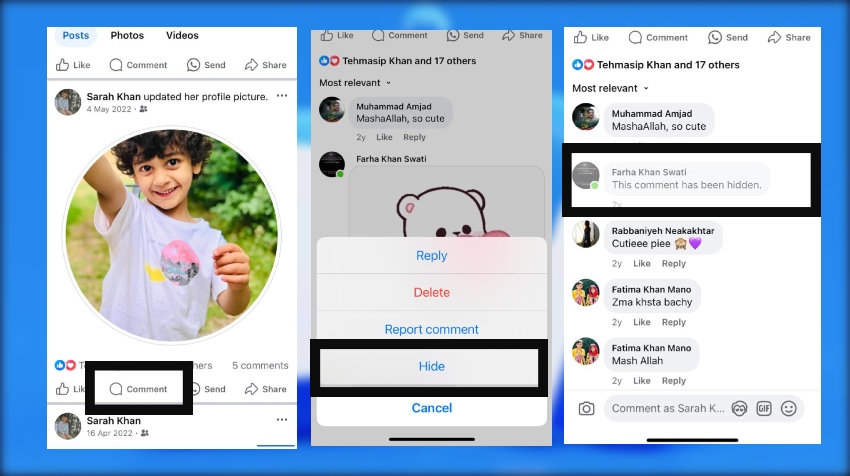
How to Hide Comments On Facebook in 3 Steps :
Step 1 : Open the comments section and tap on the comment.
Step 2 : Hold the comment that you want to hide.
Step 3 : Select the option ‘Hide’ in order to hide the comment on Facebook.
Who Can See The Hidden Comments ?
When you hide a comment on Facebook, the hidden comments are visible to ;
- The comment remains visible to the person who wrote it.
- It is hidden from everyone else.
- Replies to the hidden comment are also hidden.
- The person who wrote the comment probably won’t find out that their comment was hidden.
- The comment can still be seen by all the friends of the person who wrote it.
💡 Pro Tip: Comments are an appreciation for your work. Want to boost your Facebook presence? Buy Facebook Comments now at just $2.99 and enhance engagement instantly!
How to Turn Off Comments on Facebook Post: Step-by-Step Guide
If you want to turn off comments on your Facebook post to prevent unwanted interactions, follow these simple steps:
Step 1: Log in to Your Facebook Account
Open the Facebook app on your mobile device or visit Facebook on your computer and log in with your credentials.
Step 2: Locate the Post
Navigate to the specific post on your timeline, page, or profile where you want to disable comments.
Step 3: Access Post Options
On the top right corner of the post, click or tap the three dots (⋯) to open the post menu.
Step 4: Select “Who Can Comment on Your Post?”
From the dropdown menu, choose the option labeled “Who can comment on your post?”
Step 5: Choose Commenting Restrictions
You will see options to limit who can comment:
- Public: Anyone can comment.
- Friends: Only your friends can comment.
- Profiles and Pages You Mention: Only people or pages you tag can comment (effectively turning off comments for others).
Select Profiles and Pages You Mention to effectively turn off comments for everyone else.
Step 6: Save Your Settings
Click or tap Done to apply the changes. Now, only the people or pages you mention can comment on your post.
Additional Tips:
- For personal profiles, this feature works when your post’s privacy is set to Public.
- For Facebook pages, page admins can manage comment restrictions similarly.
- To manage comments on Facebook groups, you can turn off comments directly on individual posts through the group settings.
- You can also use Facebook’s keyword filters to automatically hide comments containing specific words or phrases.
- To remove existing unwanted comments, use the option to delete comments by clicking the three horizontal dots next to each comment.
Why You Should Consider Turning Off Comments on Your Facebook Posts
By following these steps, you can effectively control and turn off comments on your Facebook posts, ensuring a safer and more positive social media experience.
You are a Facebook user and so obsessed with posting on a daily basis. There are a lot of people who admire your work, your creativity, and the efforts you put in. But remember, always, always, and always there will be people who won’t back off from your leg pulling. Where there are your admirers, you’ll see the haters too.
But no worries, there are methods that can help you to deal with the ones that create a mess. Blocking comments is another method users employ to prevent unwanted interactions on their posts.
Why do people prefer to hide comments? Does it have any significance? Yes, it does have significance.
- When you post on Facebook, it is certain that the viewers will make comments on it.
- Leaving comments open asks for a big heart to receive and accept every kind of comment that is coming your way.
- Limiting comments can help stop people from posting negative or irrelevant content, giving you more control over your social media experience.
Some comments would be really nice that’d make you happier, but there are some responses that really make you upset. These comments make you even more insecure when you think that everyone else can also see them.
Unchecked comments on social media can quickly spiral out of control, especially on public content, and may harm your brand reputation or personal image.
A Detailed Guide On How To Hide Comments On Facebook :
Here are some simple steps to manage comments on your Facebook posts, including hiding, disabling, or restricting comments for better control over your engagement.
Suppose you upload a picture or video of yourself on Facebook. For every single post that you make, there are privacy settings that you manage.
- You can easily turn comment options on or off using the menu on your post.
- You can enable and disable the liking option as well as the comments on your Post.
- Moreover, you can also select who can give React impressions to your posts and whom not.
For this, Facebook gives options for allowing your friends, friends of friends, and the Public to view your posts and make comments on them.
- You can access the same menu to manage other settings like who can comment, apply commenting restriction, or to click edit privacy.
- You can turn comments off or apply commenting restriction for personal accounts, personal profiles, and Facebook pages, including business pages.
- When managing who can comment, you can use the mention feature to allow only specific people or pages to comment on your post.
- Disabling comments or turning off commenting are alternative options to hiding comments, and these options are available for both personal and business pages.
Facebook is famous for always being capable enough to entertain its users. Hiding comments on Facebook is one of them.
If you want to Hide comments on Facebook and to know who can see those hidden comments, then stick here. We are going to unfold the steps that can help you do it. Follow the steps in sequence as mentioned below ;
STEPS :
Step 1 :
Connect your phone to the internet and login to your Facebook account.
Step 2 :
Open your post on which you want to hide the comments.
Step 3 :
Three options are present below every post. One is Like, second is Comment and the last is Share. Tap on Comments.
Step 4 :
Scroll down the comments section.
Step 5 :
Navigate to that particular that is to be hidden.
Step 6 :
Tap on the comment and hold it.
Step 7 :
A list of options will pop up on the screen. Select the option ‘Hide’ and the comment will be hidden.
You can also access the menu (the three dots or hamburger icon) on your post to find more options, such as click edit privacy or turn comments off if you want to manage who can comment or restrict engagement.
Well, this is the simplest guide on how to Hide comments on Facebook. You might be thinking that you can only hide the comments on your post but actually this is absolutely wrong. In actual practice, you can also hide the comments made on someone else’s Post. There is a slight difference in the type of viewers who can see the hidden comments. If you hide comments on someone else’s post then the criteria is different. And if you hide comments on your post then the viewers might be different.
Types Of Hidden Comments :
There are several types of hidden comments. Each varies from the other. Let’s see what are these types ;
- Negative Comments : These are the comments with criticism that usually involves the leg pulling. You can hide them if you don’t want to see them.
- Spam Comments : These are the comments having either false information to misguide the other followers or for some other reason. Or they may contain any image or text that is not good for your profile.
- Spammy Comments : These are comments that are repetitive, promotional, or irrelevant, often posted by bots or fake accounts. You can block comments containing certain keywords or use moderation tools to automatically hide posts and spammy comments to keep your page clean.
It is preferable to delete the spam comments right away while the other ones can be hidden. If at any time, suddenly your brain hits you to unhide the already hidden comments then do not worry. Unhiding the comment is as easy as hiding the comments. Let’s see the steps ;
You can also manage individual comments by hiding, deleting, or blocking them, and even set up tools to automatically respond to or block problematic comments for better moderation.
STEPS :
Step 1 : Go to the same post with the hidden comments.
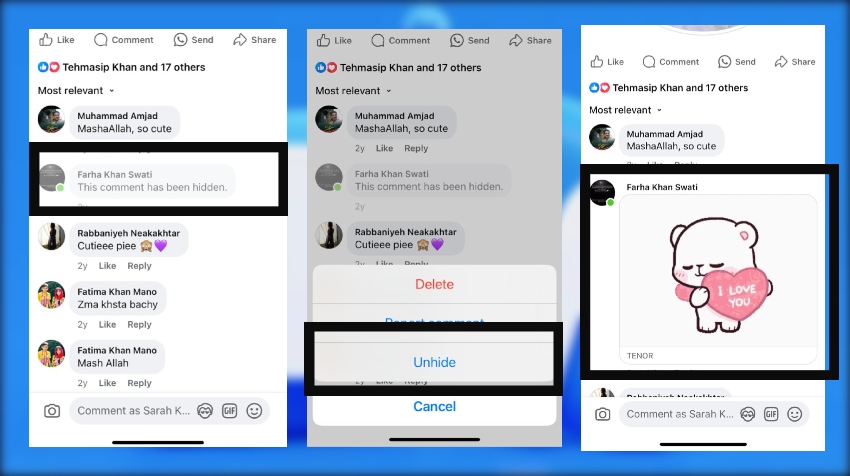
Step 2 : Tap on the hidden comment and hold it until the options appear on the screen.
Step 3 : Select the option ‘Unhide’
Comment Moderation Best Practices
Maintaining a positive and engaging comments section on your Facebook page or post is essential for building a strong online community.
One of the most effective ways to do this is by setting clear guidelines for facebook comments and making sure your audience knows what is and isn’t acceptable.
Consider using Facebook’s settings to automatically hide or delete comments that contain specific keywords or inappropriate language. This helps keep spam and irrelevant content out of your comments section and ensures that discussions stay on topic.
Regular monitoring is key:
- Respond to questions or concerns promptly to show your followers that you value their input.
- Delete comments or restrict comments from certain users if you notice spam or unwanted comments.
Facebook also offers options to limit who can comment on your post, such as:
- Only friends
- Followers
This can help reduce the risk of inappropriate comments.
By taking advantage of these moderation tools and settings, you can create a welcoming environment on your Facebook page and keep your comment section a safe space for everyone.
Common Pitfalls to Avoid
When managing facebook comments, it’s easy to overlook some common mistakes that can negatively impact your comments section and brand reputation.
Major pitfalls include:
- Not checking your comments regularly, which allows spam or unwanted comments to pile up and go unchecked.
- Failing to use Facebook’s moderation tools, such as keyword filters, which can automatically hide or delete spam and inappropriate comments before they become a problem.
Engagement matters:
- Ignoring your audience can erode trust.
- Responding to comments, even just to acknowledge feedback, helps build trust and encourages more positive interactions.
Balance is crucial:
- Overusing restrictions or hiding too many comments can make your page seem unwelcoming and discourage genuine engagement.
- Striking the right balance between moderation and open conversation is key to maintaining a healthy and active comments section on Facebook.
FAQs and Troubleshooting
How do I turn off comments on a Facebook post?
To turn off comments on a Facebook post, click the three dots at the top right corner of your post, select “Who can comment on your post?”, and choose the desired audience option to restrict comments. This allows you to limit who can comment on your facebook post, helping you control the conversation.
Can I automatically hide comments containing certain words or phrases?
Facebook allows you to set up keyword filters in your page settings. By adding specific words or phrases, you can automatically hide comments that contain those terms, helping to block inappropriate comments and spam.
How do I delete comments on a Facebook post?
To delete comments, click the three horizontal dots next to the comment you want to remove, select “Delete comment,” and confirm your choice. This is a quick way to remove spam or unwanted comments from your post.
Can I restrict comments on a Facebook page to only certain users?
As a Facebook page admin, you can customize your comment moderation settings to restrict comments to only certain users, such as followers or people tagged in the post. This helps you control who can comment on your facebook page and keep your comments section relevant.
How do I report spam or inappropriate comments on Facebook?
To report spam or inappropriate comments, click the three horizontal dots next to the comment, select “Report comment,” and follow the prompts. Facebook will review the comment and take action if it violates their community standards.
By using these tools and settings, you can easily hide comments, turn off comments, and keep your Facebook posts and pages free from spam and inappropriate content.
Can I turn off comments on Facebook posts from a personal profile?
Yes, you can restrict who can comment on your personal profile posts, but this feature works only if your post’s privacy is set to Public. You can access the option by clicking the three dots on the top right corner of your post and selecting Who can comment on your post? From there, you can limit comments to Friends or Profiles and Pages You Mention.
How do I block comments containing specific keywords on my Facebook page?
Facebook allows page admins to set up keyword filters in the Settings menu under Moderation. By adding specific words, phrases, or emojis to the filter list, all comments containing those keywords will be automatically hidden from your posts, helping to reduce spam and inappropriate comments.
Is it possible to delete multiple comments at once on Facebook?
Currently, Facebook does not support bulk deletion of comments. You need to delete comments individually by clicking the three horizontal dots next to each comment and selecting Delete comment.
Can I hide comments on someone else’s Facebook post?
Yes, if you are the admin or moderator of a Facebook page or group, you can hide comments on posts within that page or group. However, on personal profiles, you cannot hide comments on others’ posts unless you have the necessary permissions.
Will hiding a comment notify the person who posted it?
No, the person whose comment you hide will not receive a notification. The comment remains visible to them and their friends but is hidden from everyone else.
Can I automatically respond to comments on Facebook?
Yes, Facebook offers tools and third-party apps that allow you to set up automatic responses to comments. This can help manage engagement by providing instant replies to common questions or comments.
How do I manage comments on Facebook groups?
Group admins and moderators can turn off comments on individual posts within the group by clicking the three dots on the post and selecting Turn off commenting. This is useful for sensitive topics or to prevent spammy comments in group discussions.
Does turning off comments affect my Facebook post’s reach?
Restricting or turning off comments can impact engagement metrics, which may influence how Facebook’s algorithm distributes your post. However, it helps maintain a positive environment by limiting negative or irrelevant comments.
Can I turn off comments on Facebook ads?
Facebook does not allow you to completely turn off comments on ads, but you can moderate comments by hiding, deleting, or using keyword filters to control unwanted interactions on your ad posts.
How do I report inappropriate comments on Facebook?
To report a comment, click the three dots next to the comment and select Find support or report comment. Follow the prompts to report the comment to Facebook for review.
Conclusion :
Hiding comments on Facebook can overall bring about a positive effect for your account. You can hide the spread of false information to further more viewers. When yoxqu hide the comments, they are still visible to many of the other users. If you want to avoid any kind of mess, then hiding comments is the best option. It is far better than deleting comments because the hidden comments can be unhidden at any time you want.
Additionally, using these comment management strategies can help save time and improve the quality of your social media interactions.