Spotify is the art of streaming music. In fact, it is not just about music, but the streaming of audio, podcasts, audiobooks, and many more attracts millions of listeners. Moreover, Spotify is available on almost every device, from desktop PCs and laptops to phone tablets, smart devices, and speakers.
Despite the wows of Spotify, it is certain that sometimes you may face some issues with its functionality. Although these issues never last for long and you can solve them yourself, If you ask why my Spotify is not working, then you need to first identify the problem, and then we will help you fix it.
Today we have brought a guide that comprises Spotify problems and how you can fix them. The guide will answer your question, “Why is my Spotify not working?”.
Also Read: Spotify Sleep Timer: How To Set Up on iPhone and Android?
Here are some of the most common Spotify issues and how to fix them.
First Thing First
Before deleting the Spotify issues and problems, first check the following basics about Spotify:.
Check if Spotify is down.
If Spotify is down, then it is an issue for everyone. So first, check whether Spotify is down or not. You can check it on DownDetector to know if it is down in your region. If it is, then it is the problem of Spotify, and they will fix it.
Reboot or restart your app or device.
Sometimes the issue can be a small bug that causes the problem. For that, you just need to restart your Spotify app and then restart your phone. In fact, it is the simplest solution if your Spotify is not working.
Update your Spotify:
If your Spotify is not up-to-date then you are certain to face issues with your Spotify. So make sure you have updated Spotify to the latest version.
Following are the most common Spotify issues and fixes:
Problem 1: There is no Spotify sound.
If you play a song and you hear nothing, it can be a bummer, but this could happen for many reasons. Let’s start with some basics and how you can solve them.
Way 1:
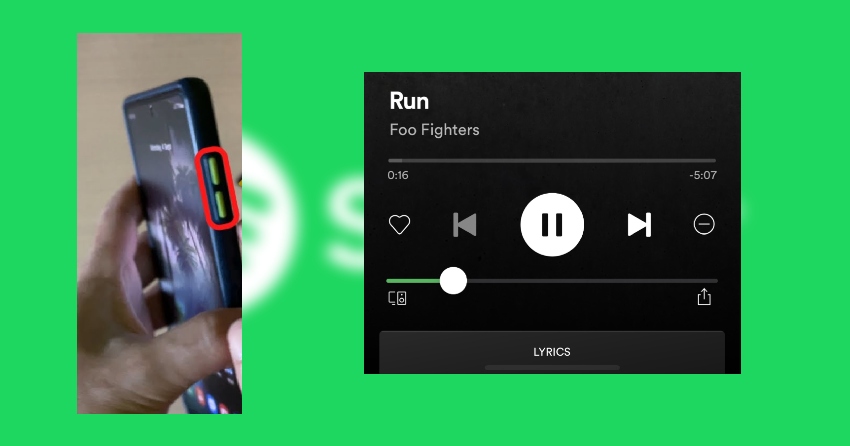
Check out the volume down and up buttons on both Spotify and your device. Check it to see if it is going up or down with the Spotify volume or not.
Way 2:
You should check your speaker or headphones to see if they are connected or not. You can go to both your Spotify settings and your phone settings to confirm you are connected to the right audio output.
Way 3:
Check out your mobile volume and make sure it isn’t turned all the way down. Sometimes we can get confused by different volume sliders, like call ringtone and volume.
Way 4:
If nothing works out, make sure you haven’t been frozen out by Spotify. Try to restart your app, log out, and then log back in and see if it fixes things.
Problem 2: Make sure you have enough space available.
If your Spotify is not working, it may have the problem of low space. Spotify requires free space to process streams and then cache those streams. So your Spotify will require free space of at least 250 MB. Double check your space, and if there is no space available, free some space, and then check if your Spotify is working or not.
Problem 3: If the Spotify app doesn’t open and it crashes:
If your Spotify app doesn’t open at all or crashes, you should first check it on other devices. If it is working on them, then you need to go through some of these simple steps to fix it.
Fix:
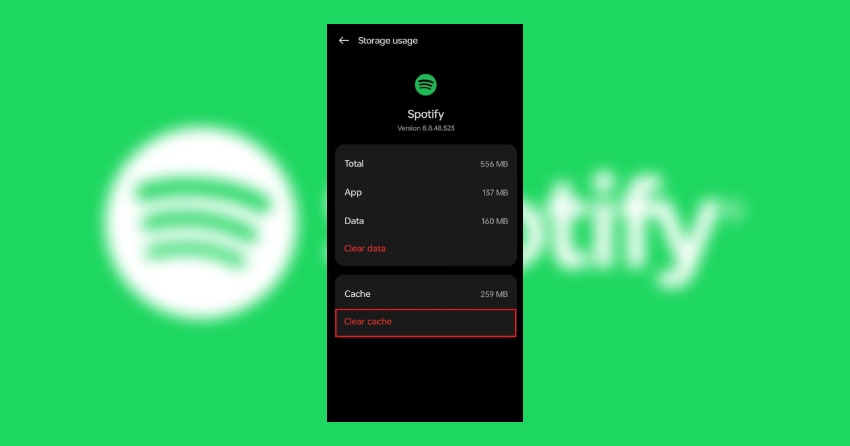
You need to relaunch the app or simply reboot your device. You need to check any latest updates on Spotify as well. Moreover, you can clear the app cache and data if the problem still prevails. You can do that by following these steps.
- Go to Settings on your phone.
- Then go to apps and find Spotify.
- There you will see a clear cache. Tap on it to remove the cache.
- Afterward, clear the data as well, and then turn on the app and login.
Problem 4: Spotify only plays downloaded or offline songs.
One of the most common problems that Spotify users reported. It allows users to play only downloaded songs and podcasts. There are many reasons for it.
The first and foremost is the internet connection. You need to check your internet connection, or you might have set Spotify to offline mode.
- When you are in offline mode, Spotify only allows you to play offline songs and streams.
- To turn off the offline mode, you need to open settings on your Spotify.
- Scroll down, and you will see an offline mode option. Turn it off.
- If you are using an iPhone, go to settings and tap on playback, and then you can turn off the offline mode option.
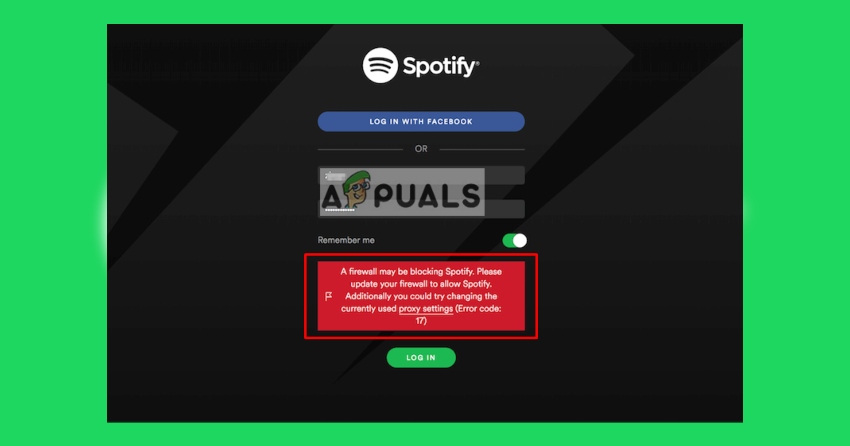
Problem 5: Spotify Error Code 17
When the installation of Spotify turns out badly, it results in the Spotify error code 17. In fact, the real reason is when the previous installation is not removed and another update comes on top of it, which results in such an error.
How do I fix it?
There are many ways to do it; some might suggest a cleanup with any third-party tool like antivirus or so, but the best way to resolve this issue is reinstalling the app. You can simply uninstall Spotify and download and install it again.
Problem 6: Spotify features don’t work, and I can’t download the songs.
Another very common Spotify error that users encounter is that they are unable to download songs or use any premium features.
One of the ways you can solve it is by simply logging out of the Spotify account and logging back in. Make sure you log in with the same account.
Now, if you can use other features but still cannot download songs for offline listings, then you need to check your downloaded song limit. Spotify has a certain limit, like you cannot download more than 10,000 songs.
If your account is in use on more than one device and you exceed the limit, you can remove that device to download songs again. Simply go to the Spotify account page and click on the sign out everywhere button to sign out everywhere where your Spotify is logged in. After that, sign into the device you are using.
Problem 7: Are you missing any Spotify playlists?
Sometimes a playlist from Spotify disappears all of a sudden. However, you don’t have to panic; you can still find it if you accidentally delete it. Spotify gives you a recovery option for a specific playlist you deleted for 90 days. So if you don’t see a playlist, then you might have deleted it accidentally, which you can recover easily from Spotify.
This is how you can recover your Spotify playlist.
Step 1:
First things first, go to the Spotify account page and log into it. There will be an option called “Recover Playlist.” Click on it to proceed.
Step 2:
All the deleted playlists will appear on your screen. You just simply need to click on recover in front of the deleted playlist you want to recover.
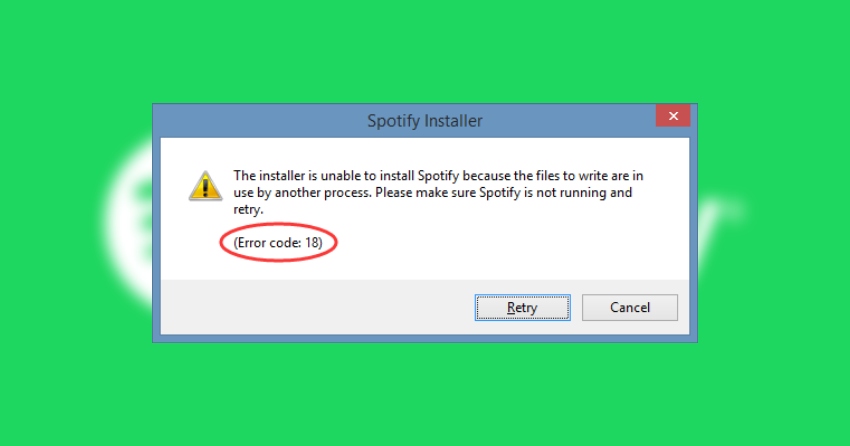
Problem 8: Error Code 18
Error Code 18 is another common Windows error that a Spotify user can come across. The error means you cannot use Spotify because something is running as a background app. Here are some of the ways you can resolve them.
Way 1:
If your Spotify app is working, then you can go to settings, then to advance settings, where you will click on the option that says startup or window behavior.
Way 2:
Always make sure that Spotify is turned off as a startup app by turning it off or by selecting no. You can manage that by going to settings, then to advanced settings, then clicking on the option of startup and Windows behavior.
Way 3:
If it didn’t work, then simply delete the Spotify app, reboot your system, and install it again.
What’s the best and easiest way to resolve issues with Spotify?
It’s not necessary whether you are using Spotify on your phone or PC; you will face such issues, as we explained. There may be a lot of solutions for it, but if you don’t want to waste your time, you just need to follow these ways to fix your problems.
Way 1:
If Spotify is not working on your phone, you need to clear the cache first. You can do that by going to apps in your settings, finding Spotify, and tapping on clear cache. Now check Spotify to see if it is working or not; if not, then clear the app data from the same place and then check again.
Way 2:
Your Spotify has stopped working now. You simply need to restart your phone and check if it is working or not. You can reboot your phone and clear all the running apps, and then try Spotify to check whether it is working or not.
Way 3:
One of the most prominent ways is to delete or uninstall Spotify and install it again. Sometimes most of the errors and problems lie with the installation of Spotify. When you reinstall it properly, almost every problem resolves itself.
FAQs:
Why is Spotify not playing any songs?
Your Spotify is not playing songs due to many reasons, like a poor internet connection, maybe Spotify is down, or there is a problem with the audio on your device. You can check your audio first to see if it is working or not. Then you can clear the cache of the Spotify app via app settings or simply uninstall and reinstall the Spotify app on your phone.
Why does Spotify keep crashing or freezing?
If you are facing Spotify crashing and freezing issues, then it is mainly because of the insufficient memory of your device. Moreover, it can be the reason for the outdated Spotify app. Or there can be too many apps running in your background. You can solve these issues by clearing up some space on your device, closing all the running apps in the background, or rebooting your device.
Why can’t I log in to my Spotify account?
If you can’t log in to your account, then there may be the wrong password or username. Moreover, there can be some technical issues as well; if that is the case, then you can wait for a while to give Spotify some time to resolve the bug.
Why are my Spotify playlists not loading?
If your Spotify playlists are not loading, then it may be an issue with internet speed, corrupted cache data, or any other with the storage of your device. You can resolve this issue by removing the app cache or checking your internet connections.
Why is the Spotify web player not working?
If you are using Spotify on the web and its player is not working, then it may be due to browser compatibility issues. If you are using an ad blocker, then it can be another problem. You can resolve this issue by using Spotify on an updated browser and turning off any ad blockers that you are using.
Why can’t I download songs for offline listening?
Downloading issues may occur due to insufficient storage space on your device, problems with your internet connection, or limitations imposed by your Spotify subscription plan.
Why is Spotify skipping songs?
Song skipping issues could be related to internet connectivity problems, playback restrictions imposed by Spotify due to licensing agreements, or issues with your device’s hardware or software.
Why can’t I stream Spotify on my smart speaker or other connected devices?
Streaming issues with connected devices may be caused by compatibility issues, network connectivity problems, or configuration issues with your streaming device.
FInal Viewpoints:
If you ever face some issues with your Spotify, then these are the problems with solutions you can follow. It is not necessary that you will always face such problems, but that doesn’t mean you can’t. If you want to avoid such problems, you always need to keep the Spotify app up to date. In this way, you won’t ask why my Spotify is not working.