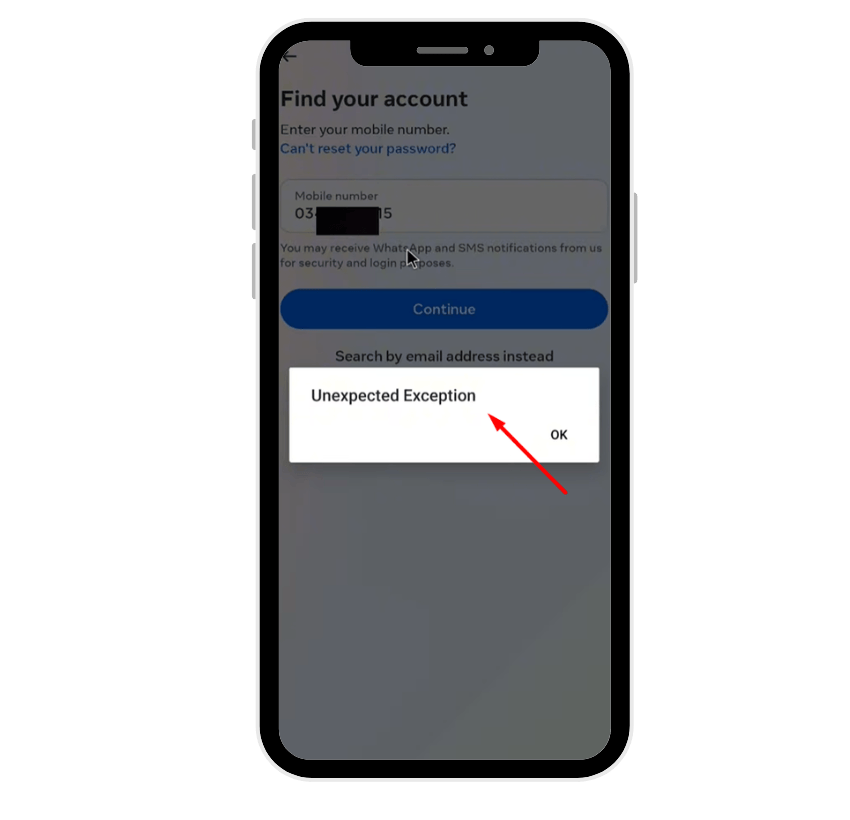
When using Instagram, you might sometimes encounter a message like “An unexpected exception occurred.” This error can be confusing and frustrating, especially if it suddenly interrupts your browsing, posting, or messaging. But what does this actually mean? In simple terms, this Instagram unexpected error indicates that something went wrong while the app was trying to perform an action — often due to a temporary glitch, faulty cache data, unstable internet connection, or outdated software.
This article explains in detail what causes this error, how to fix it, and what to do if the problem persists even after trying basic troubleshooting steps. We’ll also look at the best ways to contact Instagram or recover your Instagram account if this issue prevents you from logging in or posting.
Stay visible longer with saves, impressions, and automatic likes that help your content perform better in the Instagram algorithm.
Understanding the “Unexpected Exception” Error on Instagram
The “unexpected exception” message usually appears when the Instagram app encounters a bug or when an operation fails unexpectedly. It’s similar to the “unexpected error occurred” message seen on other apps or platforms. In Instagram’s case, it can show up when you’re trying to:
- Upload a profile picture
- Post a story or reel
- Refresh your feed
- Send or receive a message
- Change account settings
- Log in or log out of multiple accounts
Essentially, this error message signals that the app tried to perform a function but something stopped it. The reason could be as simple as a temporary glitch in the Instagram servers or as complex as corrupted data in your app cache.
Related: What Does Flagged for Review Mean on Instagram?
Common Reasons Why the Error Occurs
There are several reasons why an “unexpected exception” might appear. Understanding these helps you fix the Instagram unexpected error more effectively.
1. Temporary Glitch in Instagram Servers
Instagram’s backend servers occasionally experience issues or downtime. These temporary glitches can affect how data loads or how your Instagram account communicates with the main system. If the error started just minutes or hours ago, it could be due to Instagram’s own maintenance or outages.
2. Corrupted App Cache or Data
When the app cache or app data becomes corrupted, Instagram may show an error occurred message. Cached files help the app load faster, but over time, they can cause performance problems. This is one of the most common causes of unexpected error occurred problem on both Android phones and iPhones.
3. Outdated Instagram App
Using an older version of the Instagram app can also trigger unexpected errors. Old versions often lack compatibility with the latest server updates, so always check the Google Play Store or App Store for the latest version.
4. Unstable Internet Connection
A weak or unstable Wi-Fi or mobile data connection may prevent Instagram from loading content properly. When the connection drops during an action, the app may throw an unexpected error message.
5. Software Bugs or OS Compatibility Issues
Sometimes, your device’s software may not fully support the app version you’re using. Users with outdated Android or iOS versions may experience more frequent unexpected error occurred issues.
6. Multiple Accounts or Login Conflicts
If you switch between multiple accounts frequently, Instagram may store conflicting session data, resulting in unexpected exceptions.
7. Temporary Restrictions or Suspicious Activity
Instagram might restrict your account temporarily if it detects spam-like behavior such as logging in too often, using automation tools, or posting rapidly. These restrictions can prevent certain actions, leading to error messages.
How to Fix the “Unexpected Exception” Error on Instagram
Let’s go through proven methods to fix Instagram when this unexpected error occurred problem appears.
1. Clear Cache and Data
Start by removing old or corrupted data from the app.
For Android:
- Go to Settings > Apps > Instagram.
- Tap on Storage.
- Select Clear Cache and then Clear Data.
This deletes temporary files that may be causing the error occurred issue.
For iPhone:
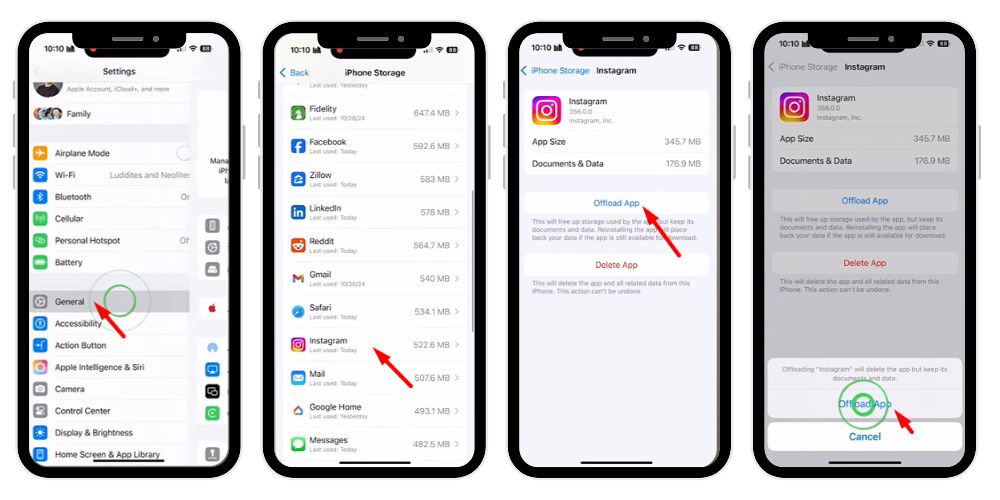
You can’t directly clear cache, but you can offload the app from Settings > General > iPhone Storage > Instagram > Offload App, then reinstall it.
2. Check Internet Connection
Switch between Wi-Fi and mobile data. Poor networks often cause the Instagram unexpected loading failure. If you’re on Wi-Fi, try mobile data and vice versa.
You can also restart your router or reconnect your device to refresh your IP connection.
3. Update the Instagram App
An outdated app is one of the most common causes of unexpected issues. Visit your Google Play Store or App Store and update the Instagram app to the latest version.
4. Restart Your Device
Sometimes, restarting your device clears minor software bugs and temporary memory problems. After restarting, open Instagram again and check if the error message disappears.
5. Reinstall Instagram
If clearing cache and restarting doesn’t work, reinstall Instagram completely.
- Uninstall the app.
- Restart your phone.
- Reinstall it from the Google Play Store or App Store.
This ensures that any deleted or corrupted files are replaced with a clean copy.
6. Log Out and Log Back In
Go to your profile page, tap on the menu icon, then Settings > Log Out. After a few minutes, log back in.
If you manage multiple accounts, try removing all others and using only one. Sometimes the unexpected error occurred issue is tied to a single login session.
7. Check for Account Issues
If you suspect your account might be restricted, try these steps:
- Log in from a different device, like a computer or browser.
- If it works there, the issue is with your phone or app data.
- If not, your account may be under review for suspicious activity.
In this case, wait for a few hours or up to 24 hours. Sometimes Instagram lifts the temporary restriction automatically.
8. Contact Instagram Support
If the problem persists, you may need to contact Instagram directly.
- Open the Instagram app.
- Go to Settings > Help > Report a Problem.
- Write the details of your issue (mention the “unexpected exception” error message).
- Attach a screenshot if possible.
Alternatively, visit the official Facebook or Instagram Help Center from your browser.
Other Troubleshooting Tips
- Try on a Different Device or Browser: If you’re using an Android phone, try logging in on an iPhone, Windows PC, or Mac. This helps you confirm whether it’s a device-related issue.
- Check Date and Time Settings: Incorrect date or time settings can cause security mismatches with Instagram’s servers. Enable automatic date and time in your phone’s settings.
- Disable Other Apps Running in Background: Too many other apps can interfere with Instagram’s operation. Close background apps and retry.
- Check Storage and Notifications: A full storage can prevent Instagram from saving new data. Also, if you’re unable to receive notifications, that could indicate the app isn’t functioning properly.
- Avoid Using Unofficial Tools or Secret Codes: Some users try to tweak Instagram with third-party apps or secret codes to unlock hidden features. This can corrupt your app data or even get your account flagged for spam. Stick to official versions from the Google Play Store or Apple App Store only.
💡 Pro Tip: Boost Instagram saves to make your posts look valuable, trustworthy, and worth keeping for later reference.
What to Do If the Error Keeps Appearing
If after all fixes the error occurred message still appears, here are some advanced steps:
- Backup your data and perform a factory reset only as a last resort.
- Check for software updates on your phone. New patches often fix hidden bugs.
- If you’re on Windows or Mac, try clearing your browser cache (if using Instagram web).
- For Android, try reinstalling the Instagram app after deleting leftover files from file manager > Android > data > com.instagram.android.
- Consult a tech specialist if you think the issue might be linked to your phone software.
Can the “Unexpected Exception” Error Affect My Account?
Usually, this Instagram error doesn’t cause permanent damage. However, if your account shows signs of being deleted, locked, or restricted, don’t panic. It might just be a temporary glitch.
- Check your email for messages from Instagram about suspicious access.
- Try resetting your password.
- Log in from another device or browser.
- If still unable to access your page, go through the account recovery process.
Why This Error Happens More Often Recently
Many users have noticed more unexpected error pop-ups in the last few months ago, likely because of frequent software updates or increased security restrictions. Instagram is constantly refining its backend systems to detect spam, fake accounts, and wrong activities. While these updates are meant to protect users, they can sometimes cause temporary glitches or compatibility issues.
Related: What Does Delete for You Mean on Instagram?
Preventing Future Errors on Instagram
Here’s how to avoid the Instagram unexpected error from returning:
- Always keep the app updated to the latest version.
- Avoid using cloned or modded versions of Instagram.
- Regularly clear cache and restart your device.
- Don’t use multiple accounts on the same app installation.
- Maintain a stable internet connection.
- Avoid logging in from too many devices.
- Keep enough storage available on your phone.
- Periodically delete unused apps that may conflict with Instagram.
When to Contact a Professional
If none of the above fixes help and the problem persists, it could be due to a deeper software or hardware conflict. In this case, visiting a tech specialist might be necessary. They can inspect your device, check for app conflicts, or reinstall the operating system if needed.
Final Thoughts
The “unexpected exception” error on Instagram may seem intimidating, but in most cases, it’s just a temporary glitch. Whether caused by corrupted cache, unstable Wi-Fi, or outdated software, it can usually be resolved with simple steps like clearing data, updating, or reinstalling the app.
If you’ve tried all the solutions and the error message still appears, contact Instagram or try logging in from another device. Remember, errors like these are common across all apps — from Microsoft to Facebook — and don’t mean your account is permanently affected.
By staying patient, keeping your app updated, and following the right fix steps, you can get back to scrolling, posting, and sharing without interruption.
💡 Pro Tip: More live views create stronger trust. Make your broadcasts look popular, engaging, and worth staying tuned to.
FAQs
1. Why is Instagram showing unexpected exceptions?
Instagram shows unexpected exceptions when the app encounters temporary glitches, corrupted cache files, outdated software, or unstable internet connections. Clearing cache and data, updating the app, and restarting your device usually fix this unexpected error occurred problem quickly.
2. Why is Instagram not letting me log in?
If Instagram isn’t letting you log in, it may be due to wrong password, temporary account restriction, or app bugs. Try resetting your password, clearing cache, updating the app, or logging in from a different device or browser.
3. How do you know if Instagram banned you?
You may be banned if you see “Action Blocked,” can’t log in, or your posts disappear. Check your email for account warnings. A permanent ban restricts all access, while temporary bans usually lift within a few days.
4. How can I fix the “unexpected exception” on Instagram?
To fix Instagram errors, clear cache and data, check your internet connection, update or reinstall Instagram, and restart your phone. If the problem persists, try another device or contact Instagram support for further troubleshooting and recovery assistance.
5. Can a poor internet connection cause Instagram errors?
Yes. A weak Wi-Fi or unstable mobile data connection can cause loading issues, failed uploads, and unexpected error messages. Switch between networks, restart your router, or reconnect your phone to restore smooth Instagram app performance.