Instagram has become one of the most used social media platforms for sharing photos, videos, and connecting with friends. Apart from posting content on your feed, Instagram also offers direct messages (DMs) as a private way to communicate with other users. Within these conversations, Instagram gives you different options to manage the messages you send and receive.
One of these options is “Delete for you”. Many Instagram users get confused between “Delete for you” and “Unsend”, because they work differently. If you have ever wondered what does delete for you mean on Instagram, this detailed guide explains everything you need to know, along with a step-by-step walkthrough and FAQs.
Gain instant trust with authentic comments, build likes, and maximize impressions to enhance visibility across Instagram with every post.
Understanding Instagram Messages
When you open the Instagram app, you can see an airplane icon at the top right corner of your home screen (feed). Tapping on this icon opens your Instagram inbox where you can access your direct messages (DMs).
Here you can:
- Start a conversation with a friend or follower.
- Share photos, videos, posts, and comments privately.
- Delete Instagram messages if you don’t want to keep them.
- Use the unsend option if you’ve sent the wrong message to the wrong person.
Instagram conversations are private, but once a message is sent, both you and the recipient can see it. This is why Instagram has built two controls for managing messages: Delete for you and Unsend.
Related: What Does FTP Mean on Instagram?
Deleting Messages on Instagram
Deleting a message on Instagram is not the same as removing it for everyone. When you tap delete, you are only clearing it from your own chat. This is what Instagram calls Delete for you.
If you want to delete the entire chat, you can also clear the whole conversation from your device. But remember: deleting a conversation from your account does not erase it from the other person’s inbox. They will still see everything unless you specifically unsend messages.
This distinction is what confuses most people, so let’s break it down clearly.
How to Delete a Message for You
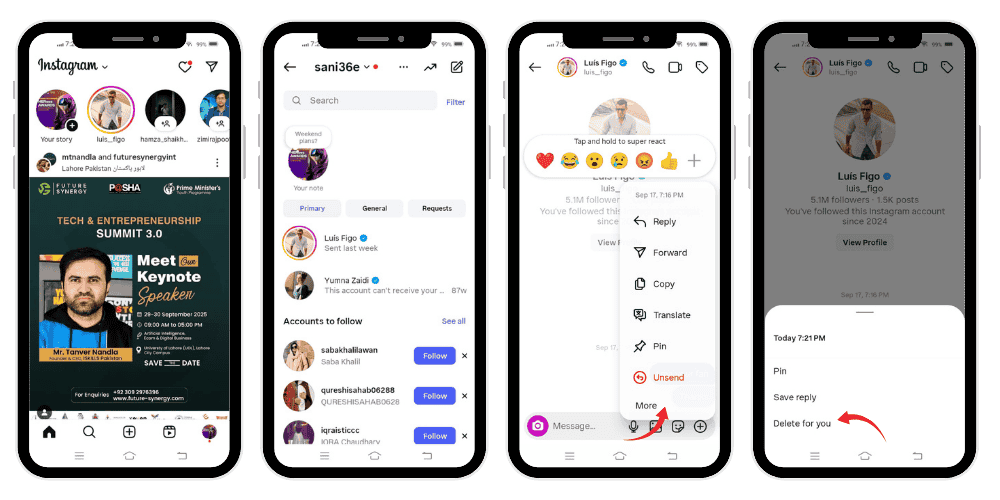
The “Delete for you” feature simply removes a message from your personal chat window. Here’s how you can use it:
- Open Instagram on your phone (Android or iOS).
- Tap the airplane icon at the top right corner to open your inbox.
- Choose the Instagram chat where the message you want to delete exists.
- Press and hold the message until a pop up menu appears.
- Tap on Delete for you.
- Confirm your choice.
Now, that message will disappear from your screen. However, the recipient will still see it in their conversation.
This option is helpful if you just want to clean up your messages without affecting the other person’s side of the Instagram conversation.
Unsend Message on Instagram
Unlike Delete for you, the Unsend option removes the message from both sides. This means the other person will no longer be able to see the content.
When you tap unsend, Instagram instantly erases the message from the entire conversation. Whether it was a comment, photo, video, or text, it will vanish from both inboxes.
It works on both Android and iPhone devices, and the recipient does not receive any notification that you unsent something.
How To Unsend Messages on Instagram
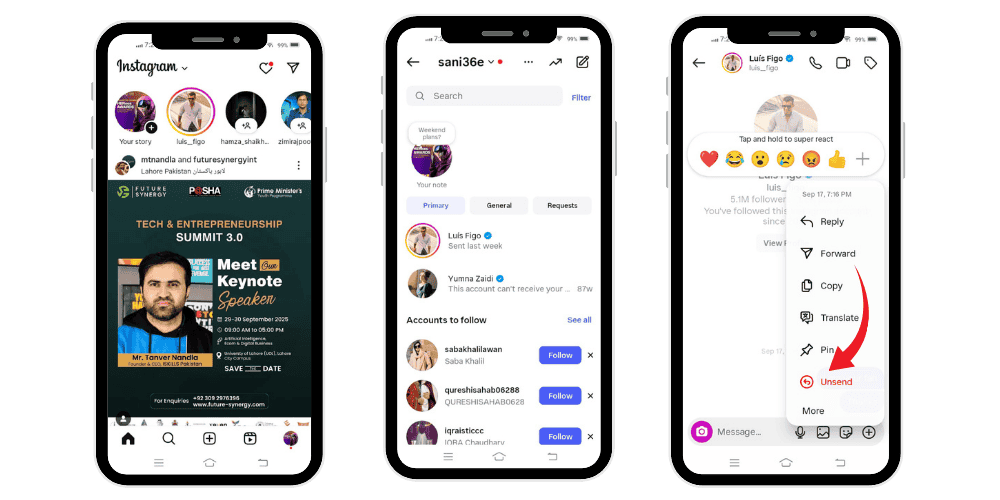
Here’s a step-by-step guide on how to unsend messages on Instagram:
- Tap the Instagram app icon on your device’s screen.
- Click the airplane icon at the top right corner to access your inbox.
- Select the conversation that contains the message you want to remove.
- Press and hold that message until options appear.
- Select Unsend.
- Confirm when prompted.
That’s it. The message is removed from both your account and the recipient’s. If they had not opened the chat, they will never see the content you sent.
This option is best if you mistakenly sent a wrong message, shared something with the wrong person, or simply changed your mind.
Delete vs. Unsend on Instagram
Here’s a quick comparison table that explains the difference between Delete for you and Unsend:
| Feature | Delete for You | Unsend |
|---|---|---|
| Visibility | Removes the message only from your chat. | Removes the message from both your chat and the recipient’s. |
| Recipient view | The other person can still see it. | The message disappears for everyone. |
| Notification | No notification is sent. | No notification is sent. |
| Best for | Cleaning your inbox without affecting the recipient. | Correcting mistakes like wrong message or wrong person. |
| Entire chat? | Works on single messages or whole chat removal (only for you). | Works on individual messages only. |
This table shows why Instagram provides both options: delete for personal clean-up, and unsend for fixing mistakes.
💡 Pro Tip: Make your Instagram posts go further by boosting reposts that improve credibility and expand audience reach quickly.
Additional Notes and Tips
- You can also swipe left on a chat and select delete chat to remove an entire chat from your inbox. Again, this only clears it from your account, not the other person’s.
- If you tap unsend, the message will vanish completely. This works for text, photos, videos, and even shared posts.
- Using Instagram on a computer browser also allows you to delete Instagram messages or unsend them. The process is similar: select the message you want, hold/click, and choose delete or unsend.
- If you block someone, your conversation remains in your inbox until you delete it. The messages are not automatically erased.
- You cannot recover a message once you have unsent it.
- Deleting or unsending does not affect comments left under posts—those are separate.
Related: What Does Live Activities Mean on Instagram?
Why Instagram Offers Both Options
Instagram designed these two features because users have different needs:
- Delete for you is about personal control. Maybe you want to tidy up your page, remove a sensitive message from your screen, or declutter your inbox without affecting the other person.
- Unsend gives you the ability to fix mistakes—whether you messaged the wrong person, typed something out of impulse, or just regret sending it.
Both features give Instagram users flexibility and peace of mind when managing private conversations.
Final Thoughts
So, what does delete for you mean on Instagram? Simply put, it’s a way to remove a message you want from your personal chat without touching the recipient’s side. The other person can still see it, but it will no longer appear in your inbox.
On the other hand, if you need the message gone for everyone, use the unsend option. That way, neither you nor the recipient will see it again.
Whether you are using Android, iOS (iPhone), or even a computer browser, these features are easy to use and give you control over your Instagram account. Next time you’re cleaning up your Instagram messages, remember the difference between delete and unsend, so you can choose the right option for your situation.
💡 Pro Tip: Stronger saves help attract attention. Buy them to show your posts deserve recognition.
FAQs
What does delete for you mean on Instagram?
It means removing a message only from your side of the Instagram chat. The other person in the conversation can still see it.
What is the difference between Unsend and Delete for you on Instagram?
- Delete for you only clears the message from your chat history.
- Unsend removes the message for both you and the recipient.
Does delete for you delete for the other person?
No. Delete for you only hides the message from your own Instagram DM window. The recipient can still view the message in their inbox.
Does delete for you on Instagram notify the other?
No. Instagram does not send any notification when you use Delete for you. The other person won’t know you removed it on your device.