Get the most out of your Spotify streaming experience by learning how to add your favorite songs that are not available on Spotify to your account.
Spotify is a digital music service that gives you access to millions of songs. With over 82 million songs, Spotify provides a comprehensive list of diverse songs and allows you to stream a wide range of music.
While the streaming app contains millions of music, some of your favorite music might not be available on the app due to different reasons. For example, songs like live performances, remixes, or old music might not be available on Spotify.
Good enough, Spotify has a feature that allows its users to upload music from their local files to their Spotify account. This user-friendly feature allows users to upload and listen to their favorite songs that are not available on the streaming service.
In this article, we’ll guide you through the easy steps to upload music to your Spotify on your mobile devices and PCs.
To upload your local music files to Spotify using a mobile device:
- Go to Settings and scroll to Local files.
- Switch “show audio files from this device” on.
For Desktop:
- Go to your profile button at the top right corner and scroll to settings.
- Scroll to “Show Local files” and toggle it on.
- Click “Add a source” under “Show songs from” to select the folder from which you want to upload.
How to Add Songs to Your Spotify on Android
You can still listen to your favorite songs on Spotify even when they’re not available on the streaming service.
To achieve this, you have to add your local files to your Spotify account.
Adding your local files or favorite songs to Spotify on Android is super easy. Below are the steps to follow:
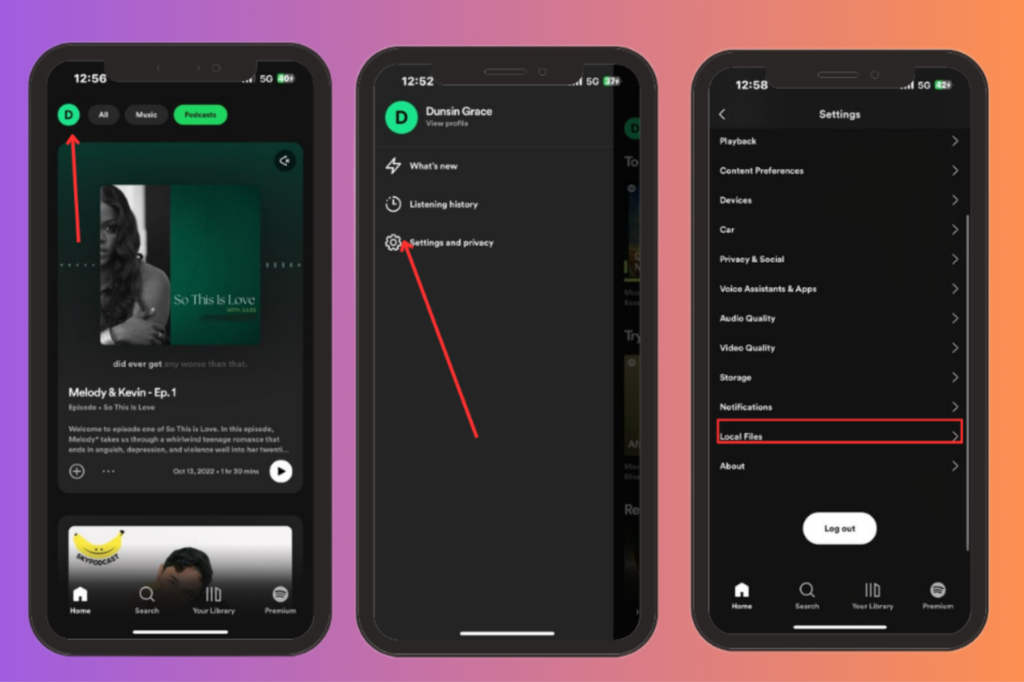
Step 1: Swipe left or tap your profile picture.
Step 2: Tap “ Settings and Privacy.”
Step 3: Scroll down to “Local Files.”
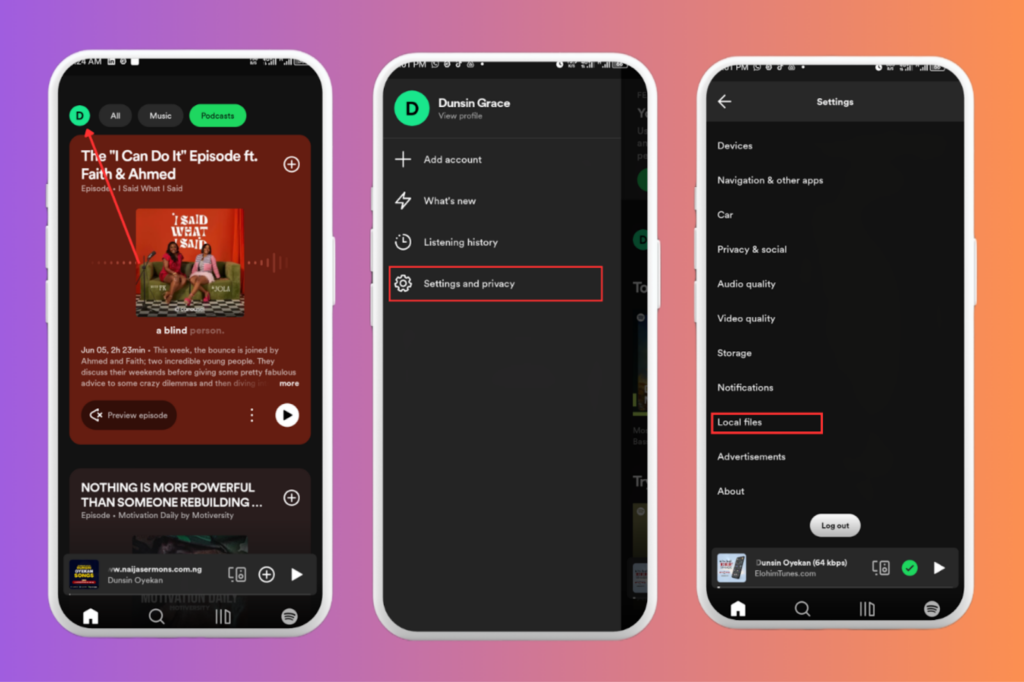
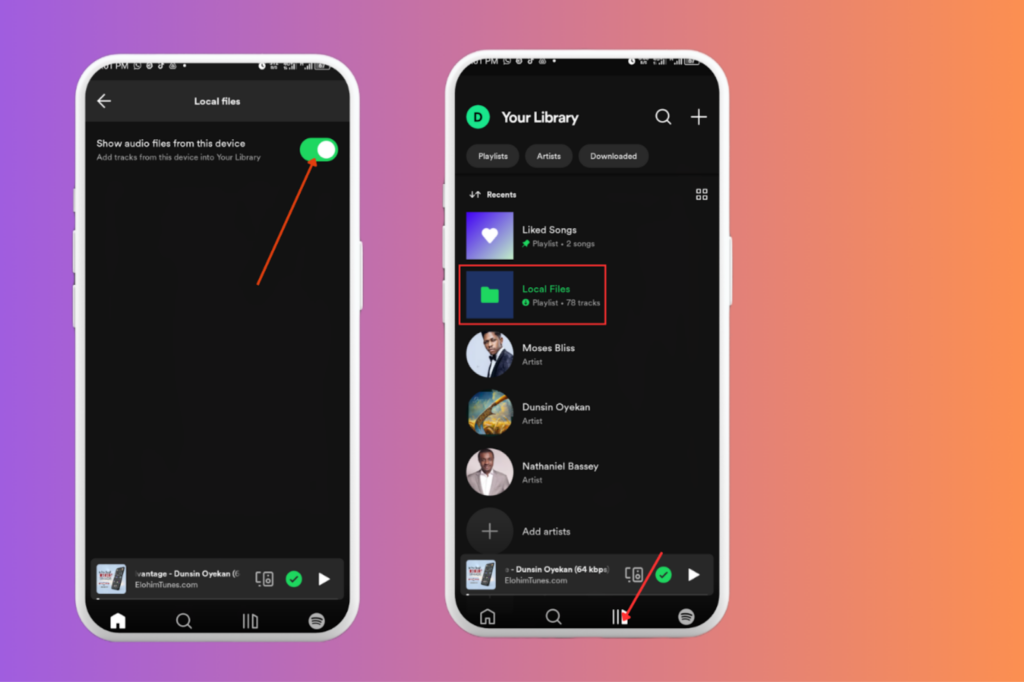
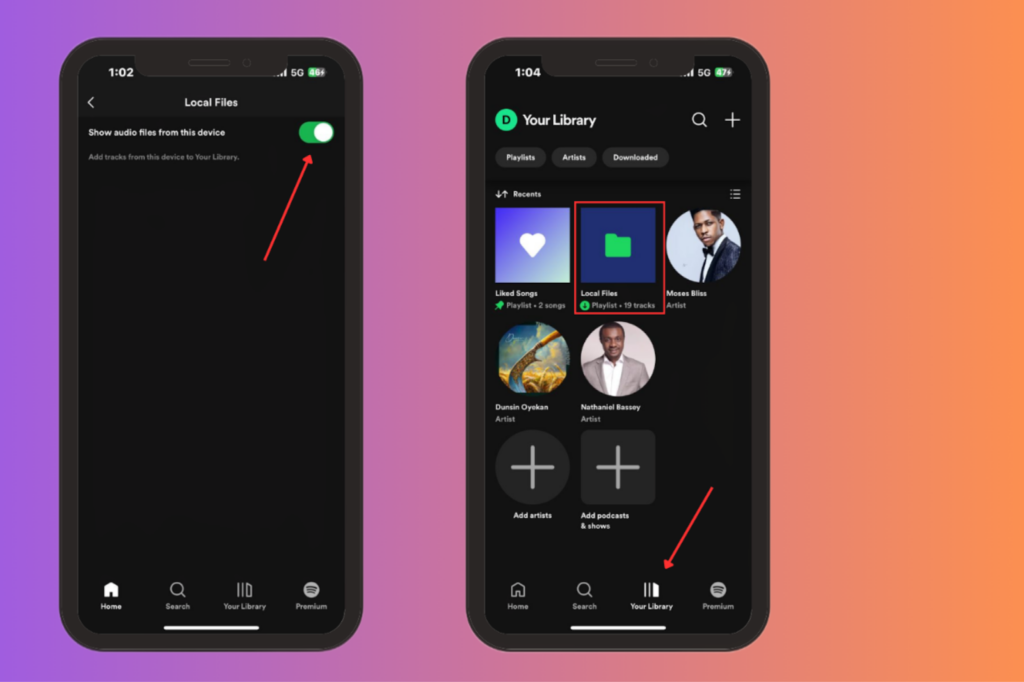
Step 4: Switch “ Show audio files from this device” on
Step 5: Go to your “ Library”. Your stored music is now in the “Local Files Folder.”
How to Add Songs to your Spotify on iOS
Adding your favorite songs to your Spotify account on iOS is easy, as with Android.
To Add Songs to your Spotify on iOS, follow these straightforward steps:
Step 1: Swipe left or tap your profile picture
Step 2: Tap “ Settings and Privacy”
Step 3: Scroll down to “ Local Files.”
Step 4: Switch “ Show audio files from this device” on
Step 5: Go to your “Library”. The “Local Files” folder should now appear in Playlists, and you can listen to these songs right away.
How to Add Songs to Your Spotify on PC
To upload your music to Spotify on PCs ( Windows or macOS), you need to use the Spotify desktop app instead of the Web Player.
Here’s how to go about it:
Step 1: Click your profile picture at the top and tap on “ Settings.”

Step 2: Scroll to “Your Library” and switch ON “ Show Local Files.”
Step 3: Under “Show songs from”, turn on the folders you want Local Files to hmacOSccess to.

If the songs you want to add are located in a folder apart from the default folders that Spotify offers, Click “ Add a source” to select the folder on your PC that contains the song(s) you want to add.
Step 4: Restart the Spotify app. Click on “ Your Library” at the top left. Once opened, you will find the list of uploaded songs on a playlist called “ Local Files.”

Frequently Asked Questions About Spotify
1) Does Spotify allow users to add songs to their Spotify account?
Spotify has a feature that allows its users to upload music from their local files to their Spotify account.
This allows users to upload and listen to their favorite songs that are not available on Spotify.
2) Can I add my own songs to Spotify?
Yes. Spotify supports uploading your music or local files. If some of your favorite songs are not available on Spotify, you can upload them from your device.
After uploading, you’ll find them in your library’s local files folder. You can play and listen to the song(s) on the Spotify app.
However, if you want to upload your music to Spotify so that others can stream it, you’ll need to go through a distribution service.
3) Can I add songs to my Spotify on Iphone?
Absolutely. You can add songs to your Spotify by going to the settings menu. Under the Settings menu, Click on Local files and toggle on the “ Show audio files from my device” button.
Check “Library”. Songs from your device should now appear under “Local files”.
4) Do I need a Spotify premium account to add songs?
No. You can add songs by uploading your local files on Spotify whether you are a free or premium user. You do not need a Spotify premium account to add songs.
5) Can I download music from Spotify?
Yes. You can download music and podcasts on Spotify. However, this is only possible with a Spotify premium account.
As a premium user, you can download as many tracks as you want. On the flip side, you can only download podcasts with the free version.
6) Can you put non-Spotify songs on Spotify?
Absolutely. Spotify allows you to add non-Spotify songs to your account by using the Local files uploading feature. You can play and listen to your favorite songs that are not available on the Spotify streaming service.
7) How much is the Spotify premium in $?
The Spotify Premium prices vary depending on which premium plan you choose.
The Spotify Premium Individual plan costs $ 11.99 per month, the Premium Duo Plan costs $16.99, the Premium Family Plan costs $19.99, and the Premium Student plan costs $5.99 per month
Spotify also offers premium free for 1 month, after which you begin to pay. This offer is only available if you haven’t tried premium before. Terms and conditions may also apply.
Wrapping Up
With the user-friendly feature Spotify supports, users can upload their local files or songs to the app. This makes it easy to play and listen to favorite songs that are not available on Spotify.
By following the easy and straightforward guide on how to upload your songs to Spotify, you can enjoy listening to your favorite songs all day within the Spotify App.