Uploading GIFs to your Instagram posts, stories, and comments is a great way to express yourself in a quick and playful way without using words.
GIF (Graphics Interchange Format) is a type of digital image file that is often used for short, looping animations.
The GIF file contains a series of static images that are displayed in rapid succession, thus creating the illusion of a short animation. They are often used to create memes and can be a fun way to interact with friends online.
Uploading GIFs to your Instagram stories and reels can help express your emotions or reactions to friends and followers in an interesting way. They can also help spice up and add humor to different social content.
In this article, we’ll guide you through ways you can easily upload GIFs to your Instagram stories, reels, and comments.
Quick Answer: To upload GIFs to your Instagram feeds, you need to use a GIFs Maker App like Giphy or upload your GIFs as a video.
To upload GIFs to your Instagram stories, chats, and comments, you can select and upload desired GIFs using Instagram’s built-in feature.
How to Upload GIFs to your Instagram Feeds
You can upload GIFs to your Instagram feeds or posts to create fun and engaging content.
Instagram does not have an in-built feature to upload GIFs to your feed or posts, as it has for uploading GIFs to stories or comments. However, there are ways to work around uploading GIFs to your Instagram feeds.
Below are options with which you can upload GIFs to your Instagram feeds:
Option 1: Use a GIFs Maker App like GIPHY
Since Instagram does not have an in-built feature to upload GIFs to your feeds, a GIFs maker app like Giphy is a great tool to use.
Giphy is an app with a very large library of GIFs that helps you find precise and interesting GIFs to convey your message. It also helps you share selected GIFs easily in your Instagram feeds.
It is a free and perfect tool for uploading your GIFs to Instagram feeds, and it’s available for Android, iOS, and Desktop. Below are steps to follow to use the Giphy App:
Step 1: Download the GIPHY app.
Step 2: Find a GIF you want to post on the GIPHY app.
Step 3: Click the “plane icon” on the bottom right side of the GIF to share selected GIFs.
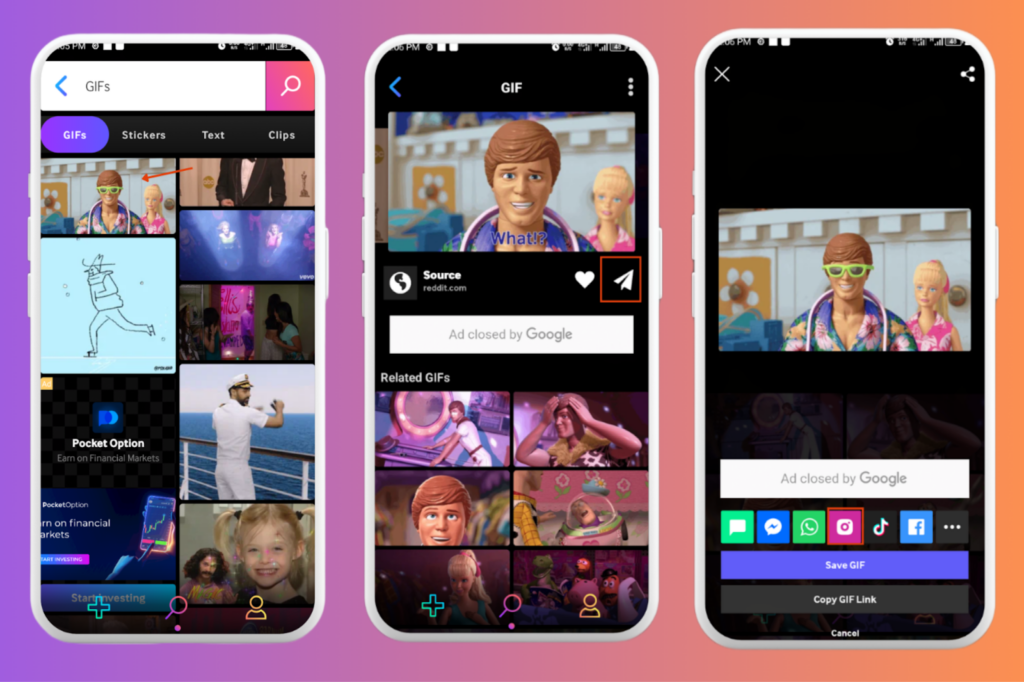
Step 4: Choose the “Instagram icon”
Step 5: Select where you want to post it on Instagram. There are options for Chats, Feeds, Reels, or Stories. Tap on “Feeds”.
Step 6: Your Instagram app is now open. You can add text, stickers, or other effects to customize the GIF before posting.
Step 7: Click on “Next” to add a caption, edit the cover, tag people, or add a location.
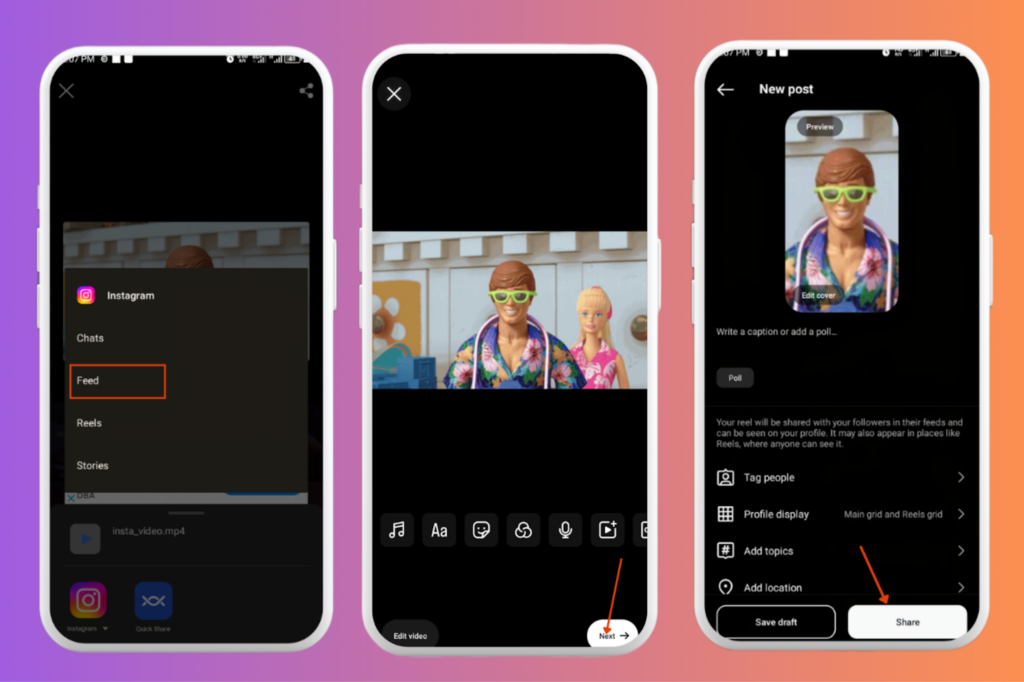
Step 8: Choose “Share”. Your GIF uploads as a reel to your profile.
Option 2: Upload a GIF as a video
To upload your own GIF, you will need to convert it to a video (.mp4 file) to post it on your Instagram feed.
You can use a free tool, like the GIPHY app, to achieve this. Here’s how to go about it:
Step 1: Open the GIPHY app or website and ensure you’re logged in.
Step 2: Select “uploads” and choose “ Create”.
Step 3: Upload a video. The video must be under 100MB and shorter than 15 seconds.
Step 4: Trim your video as desired using the sliders.
Step 5: Click “continue to upload”.
Step 6: Choose the “Instagram icon” and select where you want to post it on Instagram. Tap on “Feeds”.
Step 7: Your Instagram app is now open. You can add text, stickers, or other effects to customize the GIF before posting.
Step 8: You can click on “Next” to add a caption, edit the cover, tag people, or add a location.
Step 9: Choose “Share”. Your GIF uploads as a reel to your profile.
(Note: GIFs Maker Apps can upload GIFs to Instagram because they help change the file format from GIF to a mini video or suitable format before uploading to Instagram)
How to Upload GIFs To Instagram Stories
Uploading GIFs to your Instagram stories is a fun way to express yourself. Excitingly, Instagram has an in-built feature that supports this.
To upload GIFs to your Instagram stories, follow these easy steps:
Step 1: Upload your content or take a photo as an Instagram story.
Step 2: Click on the sticker icon in the upper right menu.
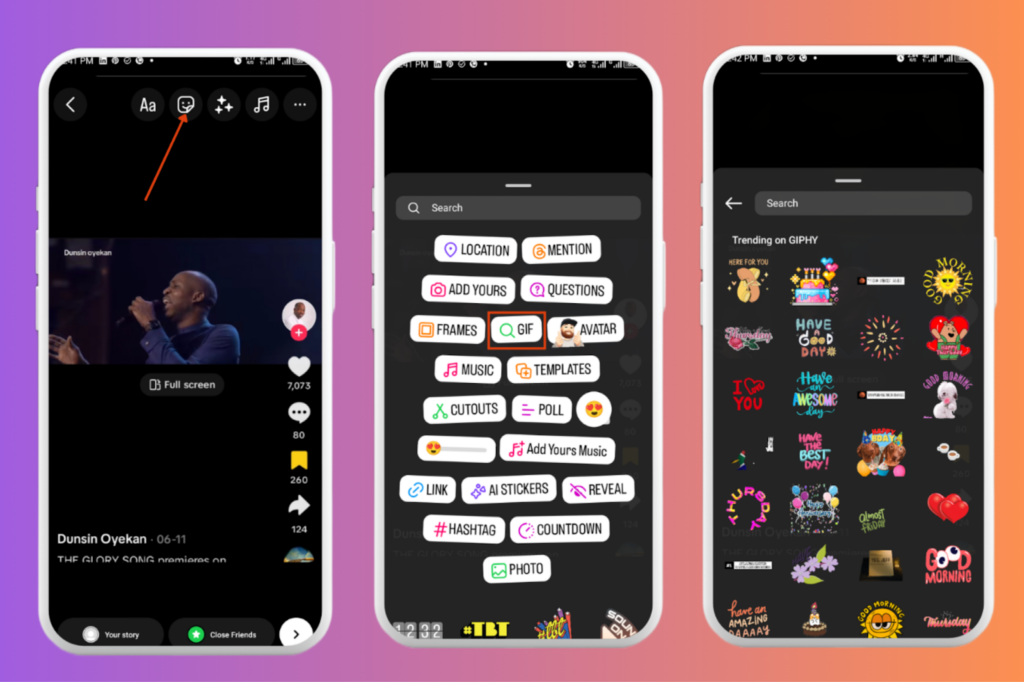
Step 3: Choose the “GIF” feature.
Step 4: Search through the GIFs and select the one you want. Click on it to add it to your story. You can also add text, images, or effects.
Step 5: Click “Share” to post.
Step 6: A new screen pops up that shows you the people your story will be shared with. Click on “Done” to confirm your post. Your selected GIF has now been added to your story.
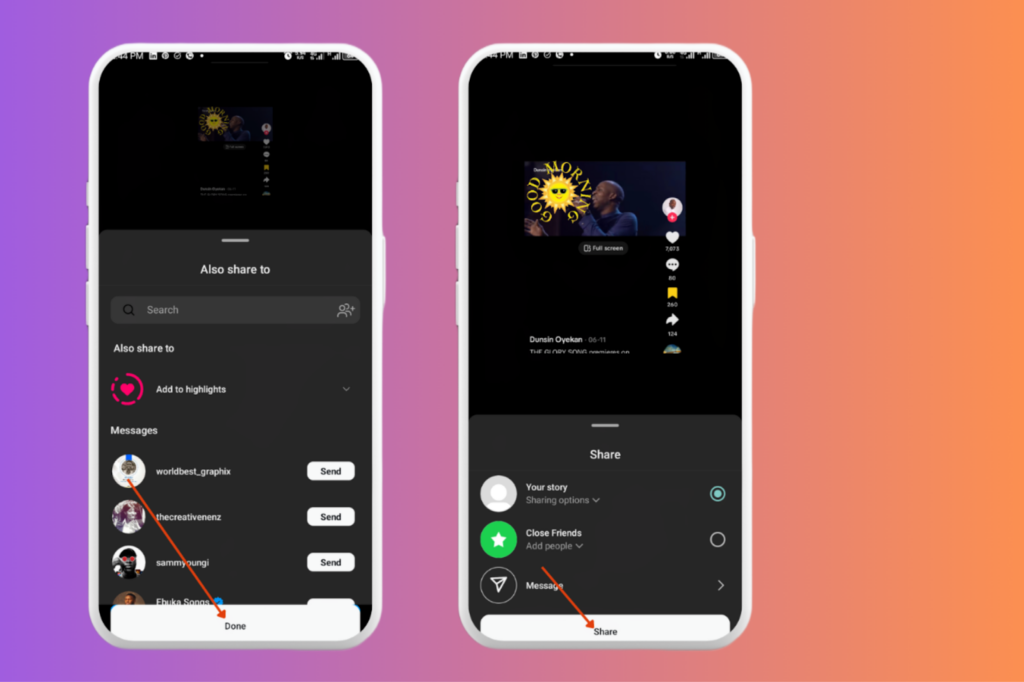
You can also upload stories to your Instagram stories by using the GIPHY App. Simply choose your desired GIF and share to Instagram stories directly from GIPHY
How to Add GIFs to Your Instagram Chats
Whether it’s a direct chat or a group conversation, you can easily spice up chats and express yourself by uploading GIFs.
Adding GIFs to your Instagram chats is an easy and straightforward process. Here are the steps to follow:
Step 1: Open the chat with the person or group you want to message.
Step 2: Tap the “sticker icon” below at Message.
Step 3: Choose the “GIF icon” in the bottom right corner.
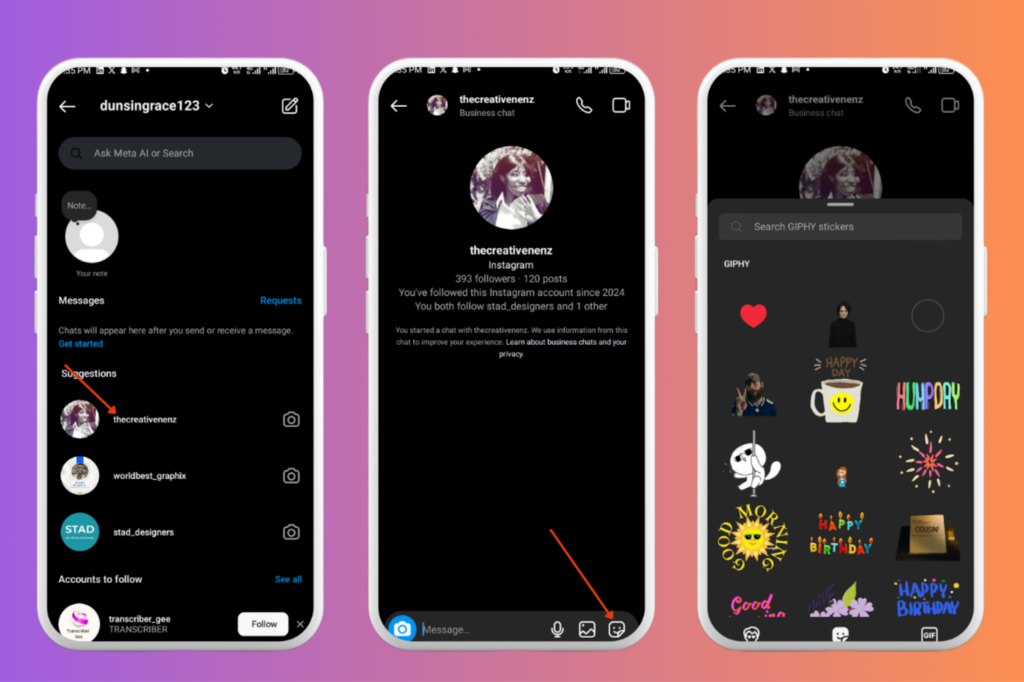
Step 4: Scroll through to find trending GIFs or use the search function to find one.
Step 5: Click on the GIF. It will automatically send it to the chat.
How to Add GIFs to Your Instagram Comments?
More often than not, adding GIFs to comments can help users make their comments stand out, and it can be a great way to reply to posts if used judiciously.
Good enough, Instagram has a feature that allows its users to comment or reply to posts using GIFs. Adding GIFs to your Instagram comments is super easy, and here is how to go about it:
Step 1: Log in to Instagram.
Step 2: Find the post you want to comment on.
Step 3: Tap the “GIF button” and search the library.
Step 4: Select your desired GIFs and click on “Send” to post in the comments.
FAQs on How To Upload GIFs To Instagram
Can you upload your own GIFs to Instagram?
Yes, you can upload your own GIFs to Instagram. With the use of tools like Giphy, you can easily create your own GIFs and share them to your Instagram feeds or posts.
Why can’t I Upload my GIF to Instagram?
Instagram does not have native support for GIFs. Hence, users cannot directly upload GIFs to their Instagram feeds.
To upload your GIF to Instagram, you need to use GIF maker Apps such as Giphy. GIF apps help to upload GIFs to Instagram feeds and posts by changing the file format to a mini video before uploading to Instagram.
Can I add my own GIF to Instagram comments?
Yes. Instagram has an in-built feature that allows you to add GIFs to Instagram comments.
Simply log in to Instagram. Find the post you want to comment on, tap the GIF button, and search the library. Select your desired GIF and click on “Send” to post in the comments
Wrapping Up
Uploading GIFs to your Instagram feeds, stories, or chats can be a fun way to express yourself without using words.
By uploading GIFs to your Instagram feeds, stories, and comments, you can interact with your friends with more humor and spice up your content in different ways.