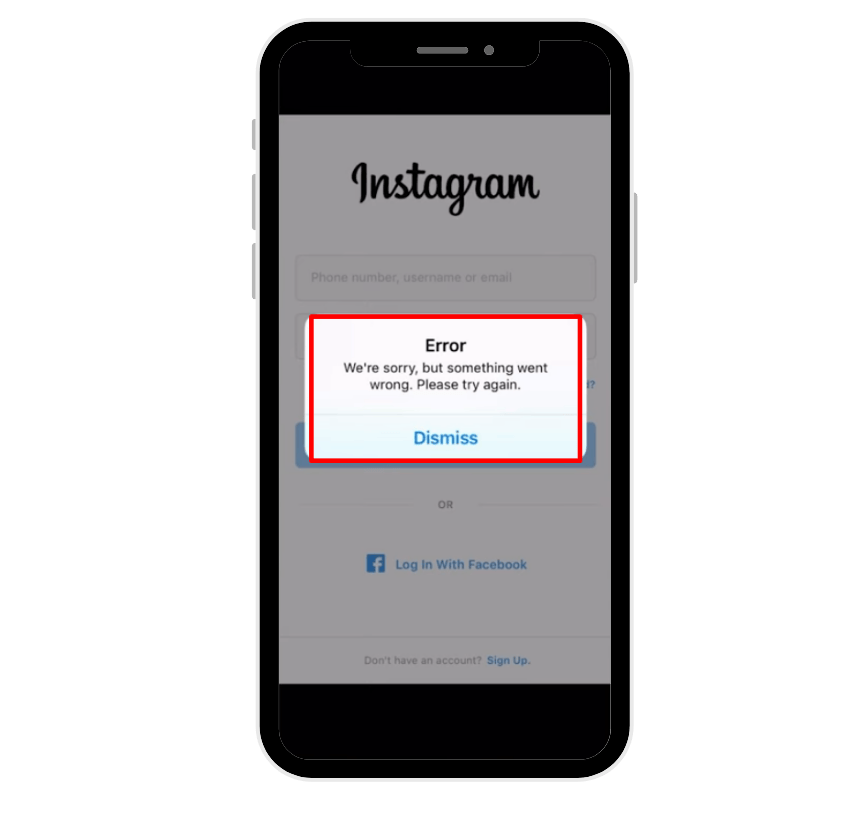
If you’ve ever opened the Instagram app and seen the frustrating message “Something went wrong” or “Sorry, something went wrong,” you’re not alone. Thousands of users encounter this vague error message every day, and it can happen for several reasons—ranging from a poor internet connection to problems with Instagram’s servers or even your account settings.
This guide explains what this error means, why it happens, and how to fix it step by step—whether you’re using an Android phone, iPhone, or even accessing the Instagram website.
Boost your content impact with story views, automatic likes, and comments to make every post more active and credible instantly.
Understanding the “Something Went Wrong” Error
When Instagram displays the “Something went wrong” message, it means the app failed to complete a request due to a technical issue. This failure could happen when you try to:
- Log into your Instagram account
- Load your Instagram feed
- Post photos, reels, or stories
- Edit your profile
- Use video editing tools inside the app
- Or even open the app on your home screen
Essentially, this message is a generic way of saying, “Instagram encountered a problem, but it’s not sure what exactly went wrong.”
Why Does the “Something Went Wrong” Error Occur?
There are multiple possible causes behind this Instagram error. Let’s break them down into three main categories:
1. Server-Side Issues (Problems on Instagram’s End)
Sometimes, Instagram’s servers experience scheduled maintenance or unexpected outages. When this happens, users worldwide can’t access certain features—or the entire platform.
Signs that this might be the case:
- Other users report the same issue on Twitter or Reddit.
- The Instagram feed won’t refresh.
- The app shows “experiencing technical difficulties” messages.
- You can’t even open the Instagram website.
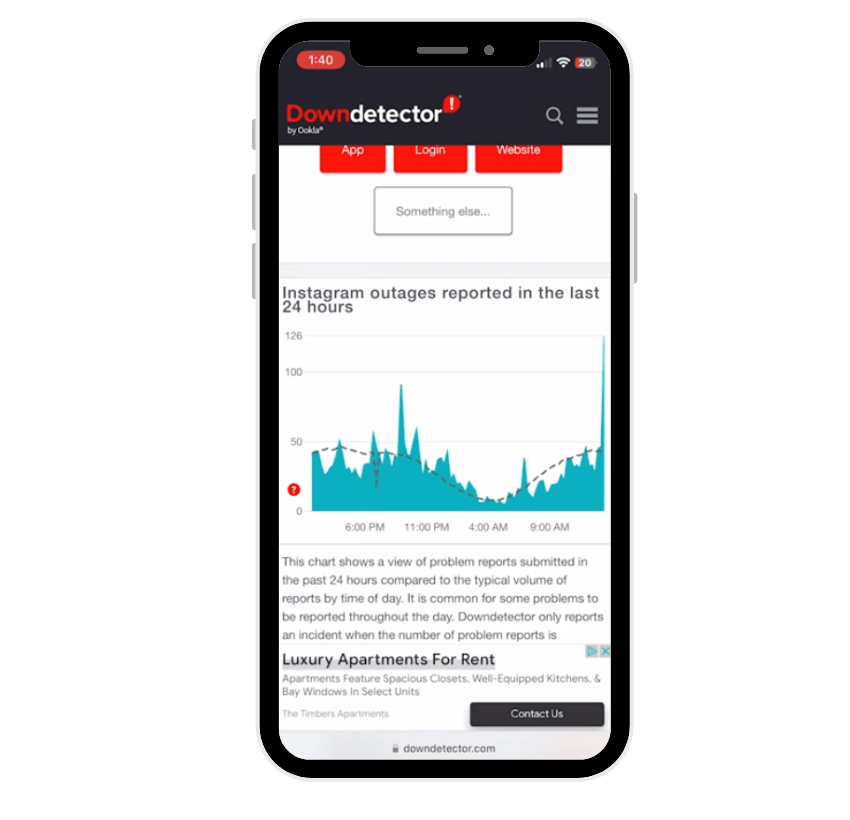
Before spending time troubleshooting your phone, it’s smart to check if Instagram servers are down.
How to check:
- Visit Downdetector and search for “Instagram.”
- Check Instagram’s official Twitter account for updates.
- Search “Is Instagram down right now?” on Google or X (Twitter).
If a server issue is confirmed, all you can do is wait for Instagram to fix it—usually within a few hours.
2. User-Side Problems (Issues on Your Device)
Most of the time, the “something went wrong” message appears due to problems with your device, internet connection, or app cache. These are usually easy to fix.
Common causes include:
- Weak or unstable Wi-Fi or mobile data
- Corrupted app cache
- Outdated Instagram app
- Conflicting login information or incorrect password
- Not enough iPhone storage or memory on Android
- Bugs in the operating system
Related: What Does ITE Mean on Instagram?
3. Account Restrictions or Violations
In some cases, Instagram may restrict your account for violating Community Guidelines or Terms of Service. When this happens, you might see the “Something went wrong” message while trying to log in, comment, or perform other actions.
Reasons your Instagram account might be restricted:
- Using third-party apps or automation tools
- Posting or sharing inappropriate content
- Spamming or mass following/unfollowing
- Violating copyright or impersonation rules
If you suspect this is the cause, you’ll need to contact Instagram support or visit the Help Center for assistance.
Common Scenarios for the “Something Went Wrong” Error
Here are the most frequent situations where users encounter this problem:
1. Logging Into Instagram
You might get the “Sorry, something went wrong” message right after entering your username and password.
Cause: Server lag, bad network, or account restrictions.
Fix: Re-sign into your Instagram app, or try logging in via Facebook if your accounts are linked.
2. Refreshing the Feed
If your Instagram feed fails to load, it might be because your Wi-Fi or mobile data connection is unstable.
Fix: Restart your router or switch between Wi-Fi and mobile data.
3. Posting or Uploading Content
If you try to upload photos or reels and see “Something went wrong creating your post,” it may be caused by low storage or app bugs.
Fix: Clear your Instagram cache or free up iPhone storage.
4. Editing Your Profile
Trying to edit profile details like your bio, link, or phone number sometimes triggers the error.
Fix: Check your internet connection or log in from a different device.
5. Using Instagram’s Built-in Tools
Features like video editing, filters, or reels might crash if your app isn’t updated or if your device is overloaded.
Fix: Update to the latest version and restart your phone.
💡 Pro Tip: Boost Instagram live views to make your broadcasts look engaging, popular, and worth watching from the very start.
Step-by-Step Troubleshooting Guide to Fix
Let’s go through a full list of solutions, from simple to advanced.
Method 1: Restart the Instagram App
Close the Insta app completely and reopen it. This clears temporary glitches that might cause the error message.
Steps:
- Swipe up from the bottom of your screen (or use the recent apps button).
- Find Instagram and swipe it away.
- Reopen the app from your home screen.
Method 2: Check Your Internet Connection
This is the most common reason behind the “went wrong” error.
Fix it by:
- Switching from Wi-Fi to mobile data, or vice versa.
- Restarting your router.
- Turning on Airplane Mode for 10 seconds, then disabling it.
- Opening another app (like YouTube) to verify your connection.
If other apps also fail to load, the issue is with your internet connection, not Instagram.
Method 3: Restart Your Phone
A restart clears background processes and resets the network connections.
How to restart:
- On Android: Hold the power button → Tap Restart.
- On iPhone: Hold the power and volume buttons → Slide to power off → Turn it back on.
Method 4: Update the Instagram App
Using an outdated version can cause technical difficulties because older versions may not sync properly with Instagram’s servers.
To update:
- On Android: Open Google Play Store, search Instagram, tap Update.
- On iPhone: Open App Store, search Instagram, tap Update.
Method 5: Clear Instagram Cache
A cluttered app cache can lead to performance issues and repeated error messages.
On Android:
- Open the Settings app.
- Go to Apps > Instagram > Storage.
- Tap Clear Cache and Clear Data.
On iPhone (iOS users):
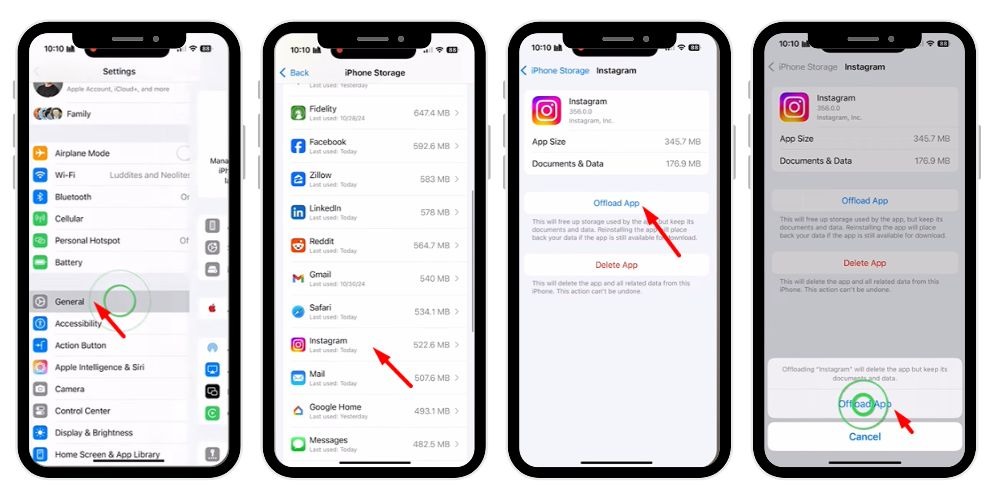
You can’t directly clear cache. Instead, offload the app:
- Go to Settings > General > iPhone Storage.
- Find Instagram, tap Offload App.
- Reinstall it afterward.
Method 6: Reinstall Instagram
If clearing the cache doesn’t help, a full reinstall may be needed to fix corrupted files.
Steps:
- Delete the app from your phone.
- Go to the App Store or Google Play Store.
- Download and reinstall Instagram.
- Log in with your username and password.
This method often fixes persistent issues.
Method 7: Log In Through a Different Device
If the error persists, your phone might be the issue.
Try this:
- Log into your account on another Android, iPhone, or computer.
- Or open Instagram’s website in your browser.
If it works there, your device or app is the problem—not your account.
Method 8: Temporarily Disable Your Account
If you suspect your Instagram account has bugs or sync errors, try disabling it temporarily.
Steps:
- Go to the Instagram website (not the app).
- Log in and open Edit Profile.
- Click Temporarily disable my account.
- Wait a few hours, then reactivate it by logging back in.
This resets your account status and often removes internal glitches.
Method 9: Check for Account Violations
If you repeatedly get this message while trying to like, comment, or follow, your account may be under temporary restriction.
Visit Instagram’s Help Center and check if you’ve received any warnings about violating the Community Guidelines.
You can also:
- Go to Settings > Account Status.
- Review any recent actions taken by Instagram.
If you believe the restriction was a mistake, contact Instagram support directly.
Method 10: Contact Instagram Support
If all else fails, reach out to Instagram Support through the app or website.
How to contact Instagram:
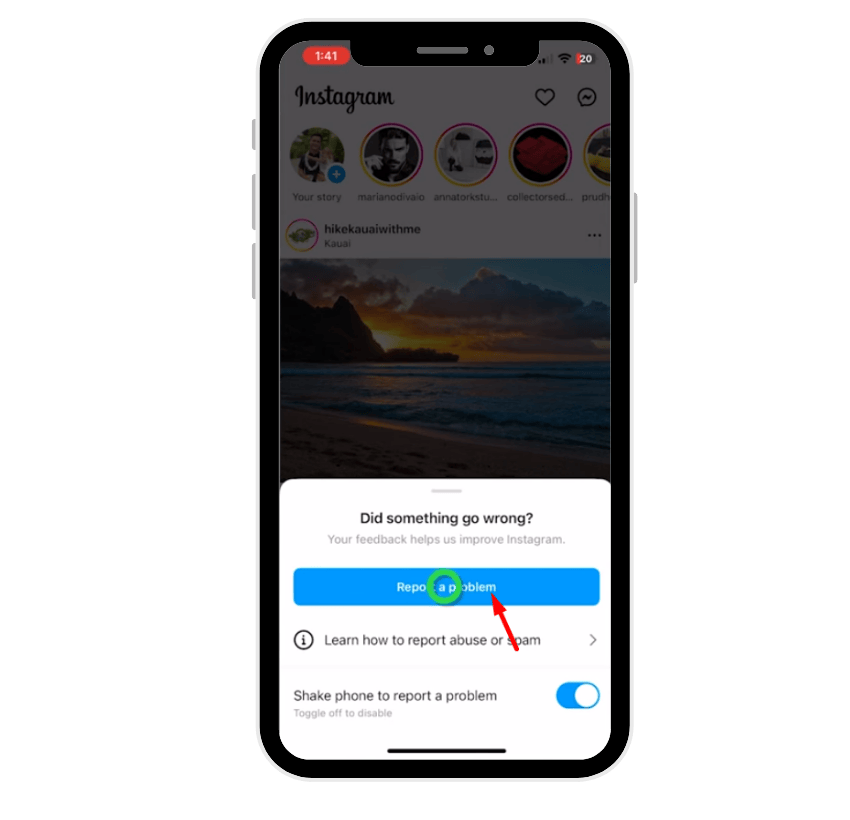
- Open Settings.
- Go to Help > Report a Problem.
- Describe the issue, mentioning “Something went wrong error.”
- Attach screenshots if possible.
Alternatively, visit help.instagram.com and use the Contact Us or Report a Problem options.
Method 11: Use Facebook to Log In
If your Instagram account is linked to Facebook, you can use Facebook login as a workaround.
Steps:
- Open the Instagram app.
- Tap Log in with Facebook.
- Once logged in, re-sync your credentials.
Related: What Does OMM Mean on Instagram?
Method 12: Check for Server Maintenance or Downtime
Sometimes, Instagram servers are undergoing scheduled maintenance.
Check:
- Downdetector for live outage maps.
- Instagram’s official Twitter for announcements.
If you confirm downtime, it’s best to wait—you can’t fix server issues from your side.
Method 13: Log In Using the Mobile Browser
If the app refuses to open, try logging in from your mobile browser (like Chrome or Safari).
Go to instagram.com, sign in, and check if your feed loads normally.
If it does, your Insta app might be the problem, not your account.
Method 14: Check Device Software Updates
Sometimes, an outdated operating system conflicts with new app versions.
To fix:
- On Android: Go to Settings > System > Software Update.
- On iPhone: Go to Settings > General > Software Update.
- Install any available updates and restart your device.
Method 15: Reset Network Settings
If your Wi-Fi and mobile data behave oddly, resetting network settings can help.
Steps:
- On Android: Settings > System > Reset Options > Reset Wi-Fi, Mobile & Bluetooth.
- On iPhone: Settings > General > Reset > Reset Network Settings.
Method 16: Perform a Factory Reset (Last Resort)
If all troubleshooting fails and the error persists, consider a factory reset as a final option.
⚠️ Warning: This will erase all data on your phone. Backup your files first.
After resetting, reinstall Instagram and log in again.
💡 Pro Tip: Buy Instagram comments to create discussions, increase trust, and boost overall engagement signals on your posts.
Conclusion
The “Something went wrong” message on Instagram can be frustrating, but it’s usually temporary and fixable. Whether it’s a bad internet connection, a cache issue, or Instagram’s servers experiencing downtime, the solutions above cover every possible cause.
By following these steps—restart, update, clear cache, check your connection, and if needed, contact Instagram support—you can quickly resolve the issue and get back to your seamless Instagram experience.
And remember: Sometimes, patience is the best fix. If Instagram itself is down, simply wait for the platform to restore service.
FAQs
Q1: What does it mean when it says “Something went wrong” on Instagram?
This message appears when Instagram encounters a technical issue. It could be caused by a weak internet connection, outdated app version, corrupted cache, or temporary problems with Instagram’s servers.
Q2: How can I fix the “Something went wrong” error on Instagram?
Try restarting the app, checking your internet connection, updating Instagram, and clearing the app cache. If the issue persists, reinstall the app or contact Instagram Support for further assistance.
Q3: Is the “Something went wrong” message caused by Instagram being down?
Yes, sometimes the error occurs due to Instagram’s servers being temporarily down. You can check outage reports on Downdetector or Instagram’s official Twitter page to confirm server status.
Q4: Why do I keep getting “Sorry, something went wrong” when logging into my Instagram account?
Repeated login errors may indicate server delays, incorrect login information, or possible account restrictions. Try logging in via Facebook or another device to verify if it’s account-related.
Q5: Should I contact Instagram Support if the error doesn’t go away?
Yes. If you’ve tried all troubleshooting steps—restart, clear cache, reinstall—and the error still appears, contact Instagram Support through the app’s Help section or help.instagram.com.