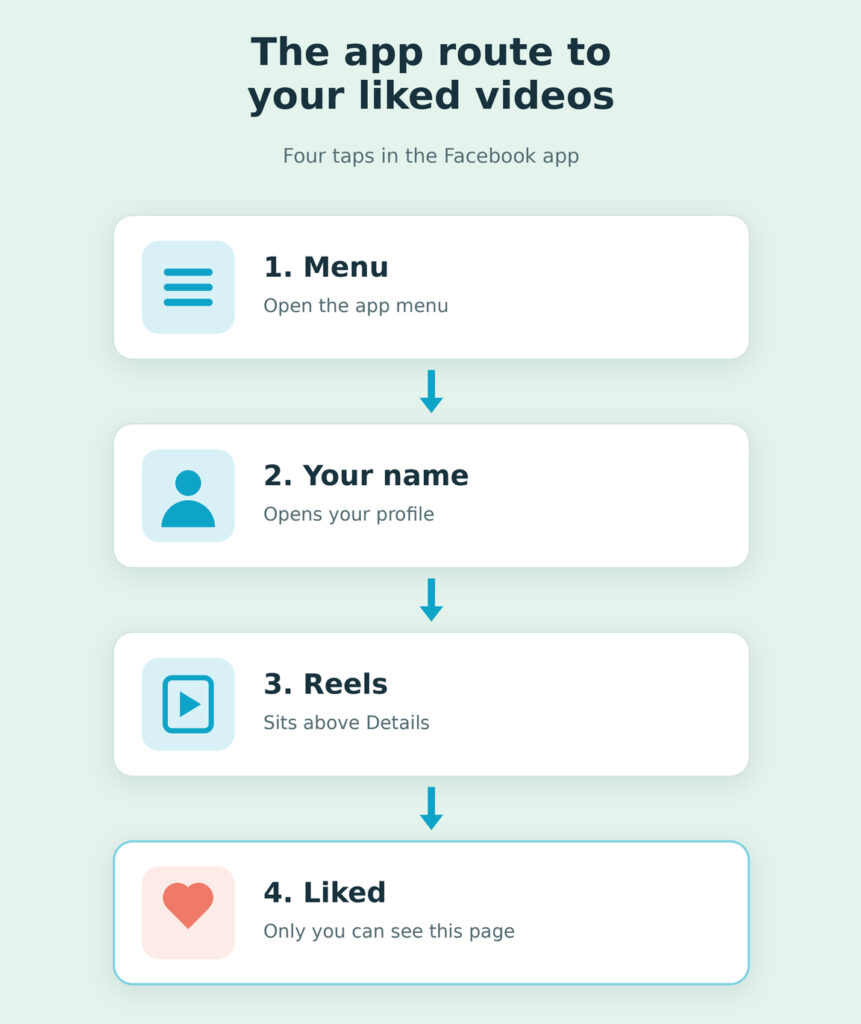
| The quickest route: In the Facebook app, tap Menu, tap your name, open Reels and choose Liked. That page lists the reels and videos you liked, and only you can see it.If you reacted with something other than Like, or you are on a computer, open Activity log instead. It records every like and reaction you have left. |
Most people who search for this want one specific video back, usually something they tapped Like on days or weeks ago and never saved. Facebook keeps that record in two places. There is a private Liked page in the app, and there is your Activity log, which is slower to search but more complete. Knowing which one to open first saves a lot of scrolling.
Expand Your Facebook Page
Grow your business or personal page with high-quality likes, shares, and followers.
Open Your Liked Videos in the Facebook App
Facebook documents this route in its help page for liked and saved reels, written for the iPhone and Android apps. Labels can shift slightly between app versions, but these are the names Facebook uses.
- Open the Facebook app and tap Menu.
- Tap your name to open your profile.
- Tap Reels, which sits above the Details section of your profile.
- Tap Liked to see the reels and videos you have liked. Tap Saved if you bookmarked the video instead.
Older guides tell you to open Watch or a Videos tab. Those instructions no longer match the app, because Facebook renamed the Videos tab to Reels and now shares new videos as reels. So if the video you are looking for was a long clip rather than a short vertical reel, it still belongs in this Reels area. Facebook has also described a Reels library that gathers the videos you have liked, shared and saved, so your app may show that wording.
The Liked page is private. Other people can see a like you leave on someone else’s video, but they cannot open your list of liked videos. Your profile is also where you can see your followers on Facebook, so it is worth knowing your way around it.
Why a Liked Video Is Not on That Page
The Liked page is narrower than its name suggests. When a video you remember liking is missing, one of these reasons is usually behind it.
- You used a different reaction. Facebook’s Liked page shows videos you liked, not ones you reacted to with Love, Haha or any other reaction. Those appear in Activity log.
- You unliked it. Tapping Like a second time removes the video from the page. If you did this by accident, you will need to find the video again through search or your watch history.
- The video is no longer available to you. If the creator deleted it or changed who can see it, it may drop out of your lists. There is no setting on your side that brings it back.
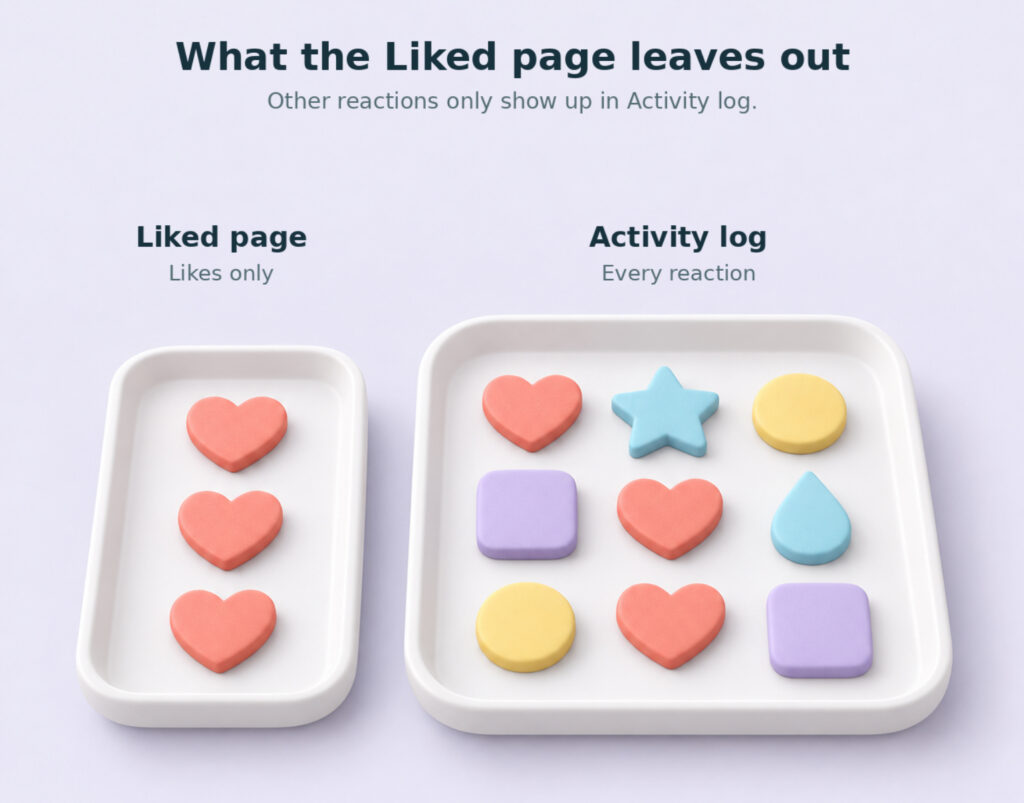
The first reason is the most common, and it catches people out because a reaction feels like a like. If you tend to use Love or Care, go straight to Activity log.
Use Activity Log to See Every Reaction
Activity log is a private record of what you have done on Facebook, from posts you created to likes, reactions and comments. It works on both the app and a computer, and it is the only built-in way to see liked videos from a desktop browser.
On the Facebook App
- Tap Menu, then tap your name.
- Tap Options below your profile picture, then tap Activity Log.
- Choose Your activity across Facebook, which covers likes and other interactions.
- Tap Filters at the top to narrow the list by category or date.
Look for entries that mention a video or reel, or that show a video thumbnail. Tapping an entry opens the original video.
On a Computer
Facebook’s help pages list only saved reels for the desktop site and say liked reels are viewed in the iPhone or Android app. Activity log is the workaround.
- Click your profile picture in the top right of Facebook.
- Select Settings & Privacy, then click Activity Log.
- Click Activity history on the left.
- Under Activity Type, choose Your activity across Facebook, then open the interactions category that holds your likes and reactions.
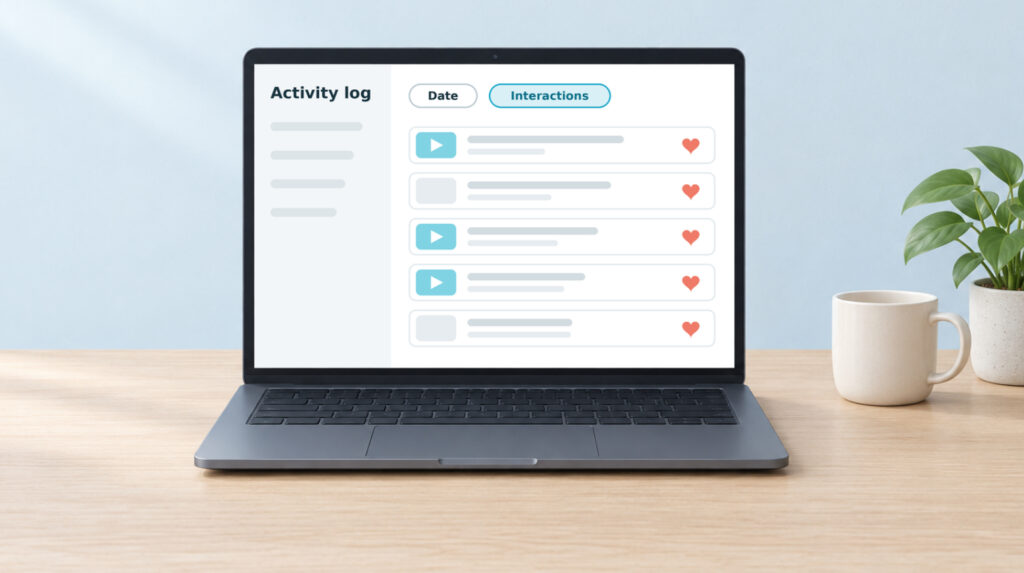
The list mixes videos with posts, photos and comments, so give yourself a minute to scan it. Entries with a video thumbnail are the quickest to spot, and clicking one opens the original video.
Narrow the List by Date
Scrolling back through months of reactions is tedious. If you roughly remember when you watched the video, use the Date filter. On a computer, click Date, pick the year and then the month, and click Save Changes. In the app, open Filters, tap Date and set a start and end date. Even a rough window of a few weeks cuts the list down to something you can read in one sitting.
Liked, Saved or Watched: Which List Holds Your Video?
People often mix up these three lists, and each one holds a different record. If the video is not where you expected, check whether you liked it, saved it or simply watched it.
| List | What it holds | Where to open it |
| Liked | Reels and videos you gave a Like, without other reactions or anything you later unliked. | App: Menu, your name, Reels, Liked. |
| Saved | Reels and videos you bookmarked to watch later, whether or not you liked them. | App: Menu, your name, Reels, Saved. Computer: your name, Reels, Saved Reels. |
| Watched | Videos Facebook logged as watched, with no reaction required. | Activity log, under logged actions and other activity. |
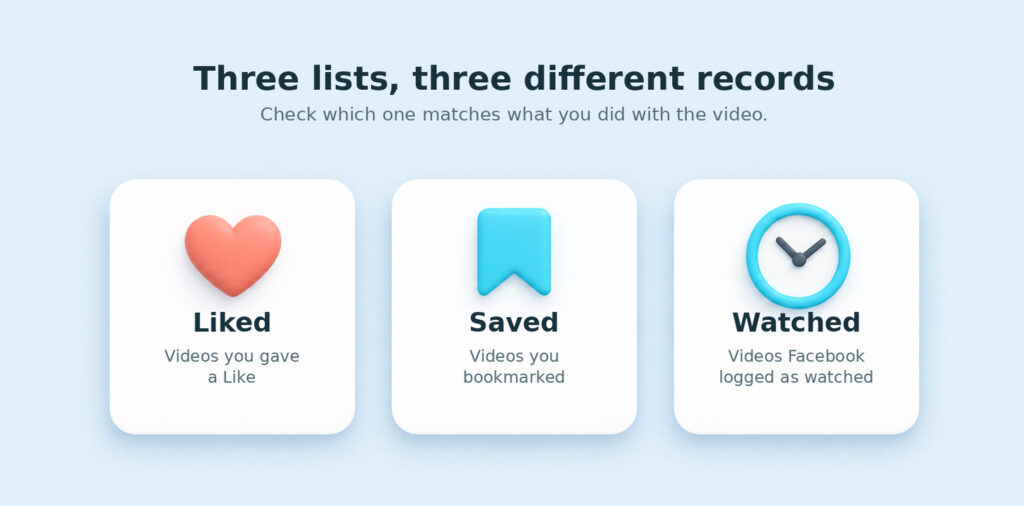
Saving and liking do different jobs. A like is a public signal to the creator, while saving is private and exists only so you can come back later. If you often lose videos you meant to rewatch, save them as well as liking them.
Find a Video You Watched but Did Not Like
If you never reacted to the video, your Liked page will not help. Facebook’s Activity log includes videos you have watched as part of your logged actions. On a computer, open Activity log, choose Activity history and look for the category called Videos you’ve watched. Its position in the menu can vary, so use the category list rather than scrolling. Treat this as a helpful record rather than a complete one, because Facebook does not promise that every view appears there.
When the watch history comes up short, Facebook search is your last option. Search for the creator, the Page or a distinctive phrase from the caption, then look through the video results. Facebook does not document any search phrase that opens your personal list, so typing “videos I liked” is not a reliable shortcut.
Unlike a Video or Clean Up Your Likes
You can undo a like on the video itself by tapping Like again. To clean up older likes in bulk, Activity log is faster because everything is in one list. Find the entry, open the Options menu beside it and choose Unlike or Remove Reaction, as Facebook explains in its guide to managing content in Activity log. The option shown depends on whether you used Like or another reaction.
It is worth doing now and then. Meta says its systems use signals such as what you like, comment on and share to decide what appears in Feed and Reels. Removing likes you no longer care about will not reset recommendations overnight, but it does take those likes out of the signals you leave behind. If your Instagram suggestions need the same kind of cleanup, you can also reset your Instagram Explore page.
Want your Facebook page to actually get seen?
Real likes. Real shares. No bots, no shadowbans, ever.
See our Facebook servicesQuestions About Liked Videos on Facebook
Can other people see the videos I have liked?
Other people who can see a video can also see that you liked or reacted to it, because Facebook shows who reacted. What they cannot see is your Liked page, which Facebook keeps visible only to you. Other platforms handle this differently, and our guide explains whether you can see who views your Twitter profile.
Can I see which videos a friend has liked?
No. Facebook does not offer a list of another person’s liked videos. You may notice their name among the reactions on a video you are both able to see, but that is the only place their likes show up.
Why does Facebook not show my liked videos on desktop?
Facebook’s help pages list saved reels for the desktop site and point you to the iPhone or Android app for liked reels. On a computer, use Activity log to find the videos you liked or reacted to.
Start With the Liked Page, Then Widen the Search
For most people, the video is one tap away on the Liked page in the app. If it is not there, switch to Activity log, which catches every reaction and is the only route on a computer. Use the date filter if you remember roughly when you watched it. If you never reacted at all, the saved list, your watch history and a search for the creator are the remaining places to look. Saving the videos you want to keep will make them easier to find next time.