YouTube has become the world’s leading video platform where millions of users share and watch content daily. One of the most important features on YouTube videos is the comment section, where creators and viewers connect, share feedback, and build community. But what if you can’t see or post comments? Whether you’re on the YouTube app, desktop video page, or using a different browser, this issue can be both frustrating and confusing.
If your YouTube comments disappear, or you notice that your own comments are not showing, don’t worry. In most cases, this happens due to simple technical glitches, browser problems, or account settings. In this article, we’ll explore step-by-step methods to fix the issue, prevent it from happening again, and know when it’s time to contact YouTube support.
More views, subscribers, and likes equal stronger authority. Improve them to gain wider visibility and long-term growth.
Understanding the Role of Comments on YouTube Videos
Comments are more than just text below a video. They serve multiple purposes:
- Viewers can express opinions, ask questions, and share experiences.
- Creators use feedback to improve future videos.
- Engaging with the comment section boosts visibility and signals YouTube’s algorithm that the content is relevant.
On desktop, comments appear beneath the video page, while on the YouTube app, they are hidden behind a tab you can expand. If you’re not seeing showing comments at all, the issue could be related to video settings, your account, or a technical error with the page.
Common Reasons Why YouTube Comments Disappear
Before applying fixes, it’s important to understand why comments may not be visible:
- Child Protection Policies: If a video features minors, YouTube automatically disables comments to protect against harmful behavior.
- Community Guidelines: Some creators may manually turn off the comment section for their uploads.
- Spam Detection: Posting similar messages repeatedly may cause your own comments to be marked as spam or blocked.
- Browser or App Glitches: Corrupted browser’s cache, outdated versions, or incompatible browser extensions can stop comments from loading.
- Temporary Issues: Sometimes, problems are linked to Google servers, and all you can do is wait.
Related: What Does Not Delivering Mean on Instagram Ads?
Quick Fixes Before Going Deeper
When your YouTube comments disappear or the comment section doesn’t load, it doesn’t always mean there’s a major issue with your account or video settings. In many cases, the problem is caused by temporary glitches or small connectivity errors. Before diving into advanced troubleshooting, it’s smart to try these basic steps.
1. Check Your Internet Connection
A weak or unstable internet connection is one of the most common reasons comments don’t load. YouTube requires a steady connection not just for videos, but also for loading additional data like the comment section.
- If you’re on Wi-Fi, try moving closer to the router.
- If you’re on mobile data, ensure you have enough signal strength.
- Run a quick speed test using Google to confirm your connection is fast enough.
Sometimes, switching from Wi-Fi to mobile data (or vice versa) resolves the issue instantly.
2. Refresh the Page or App
Temporary loading errors can prevent comments from appearing. A quick refresh often solves this.
- On desktop: Click the reload button on your browser or press Ctrl + R (Windows) or Command + R (Mac).
- On mobile: Swipe down to refresh the YouTube app or close it completely and reopen.
Refreshing forces YouTube to reload all data from its servers, which often clears temporary issues.
3. Try a Different Device
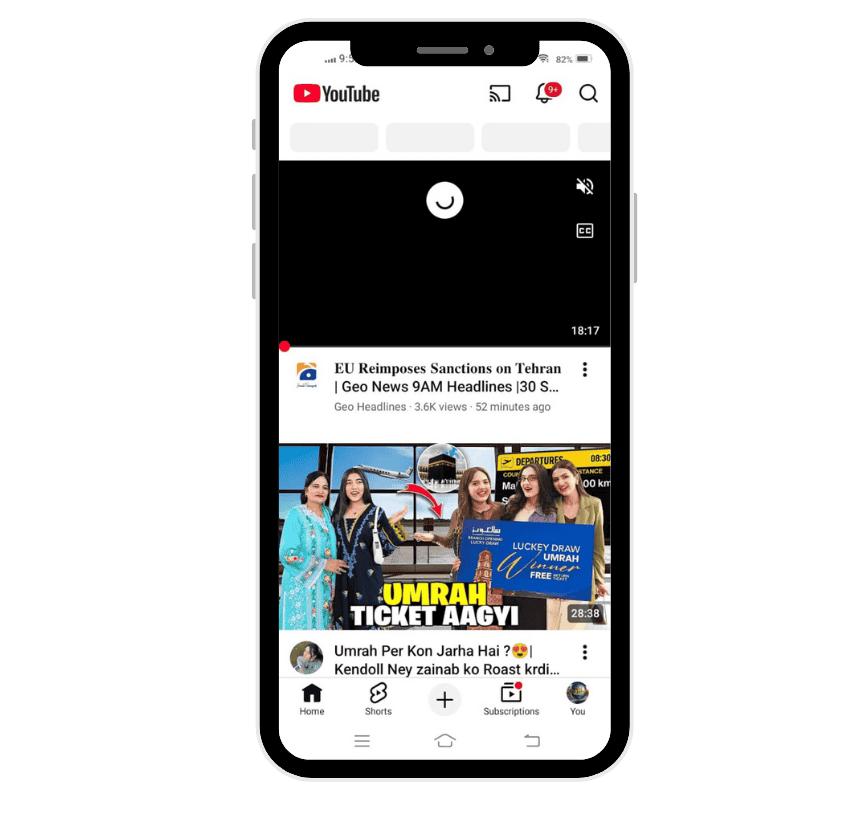
If you’re facing the same issue on one device, test on another. For example:
- If the comment section doesn’t appear on your phone, check on a computer.
- If comments aren’t visible on your tablet, test using the YouTube page in a desktop browser.
This step helps identify whether the problem is with YouTube itself or with your device.
💡 Pro Tip: Strengthen your channel with watch time that improves ranking and visibility.
4. Test on a Different Browser
Sometimes, the browser is the culprit. Corrupted cache files, outdated software, or conflicting browser extensions may block comments from loading.
- If you usually use Chrome, try Firefox, Edge, or Safari.
- You can also open YouTube in incognito mode to see if the comment section loads without cached data.
If comments show up on another browser, the problem likely lies in your primary browser’s settings or cache.
5. Restart Your Device
It might sound simple, but restarting your computer, phone, or tablet often clears out minor technical hiccups. Restarting resets background processes, refreshes memory, and re-establishes your network connection.
- On desktop: Close all websites, restart your system, and then re-open your YouTube page.
- On mobile: Power off your device completely, wait a few seconds, and turn it back on.
This quick action frequently resolves temporary issues that prevent comments from loading properly.
Browser-Related Troubleshooting
Many users face issues with comments due to browser problems. Here’s how to fix it:
- Update your browser: Outdated software can cause compatibility issues with YouTube videos.
- Clear browser cache and cookies: Old files can interfere with loading comments.
- Disable browser extensions: Some add-ons block scripts and prevent comment sections from loading.
- Use incognito mode: This eliminates cached data and extensions, allowing a clean test.
- Try a different browser: If the issue persists, switching can confirm whether the problem is browser-related.
Fixing Issues on the YouTube App
For many users, the majority of time spent on YouTube happens inside the YouTube app rather than on the desktop video page. While the app is convenient and user-friendly, it can sometimes experience glitches that cause the comment section not to load properly. If you’ve noticed that your YouTube comments disappear on mobile while everything works fine on your computer, the problem is most likely app-related. Here are the steps you should follow:
Related: What Does Excited Mean on Instagram Story?
1. Update the App to the Latest Version
Outdated applications often cause problems with loading comments, videos, or even entire pages. YouTube constantly releases updates to fix bugs, improve performance, and patch security issues.
- Open the Google Play Store (for Android) or the App Store (for iOS).
- Search for the YouTube app.
- If an update is available, tap Update.
After updating, relaunch the app and check if the comment section is now visible. This simple step often resolves temporary issues without needing further action.
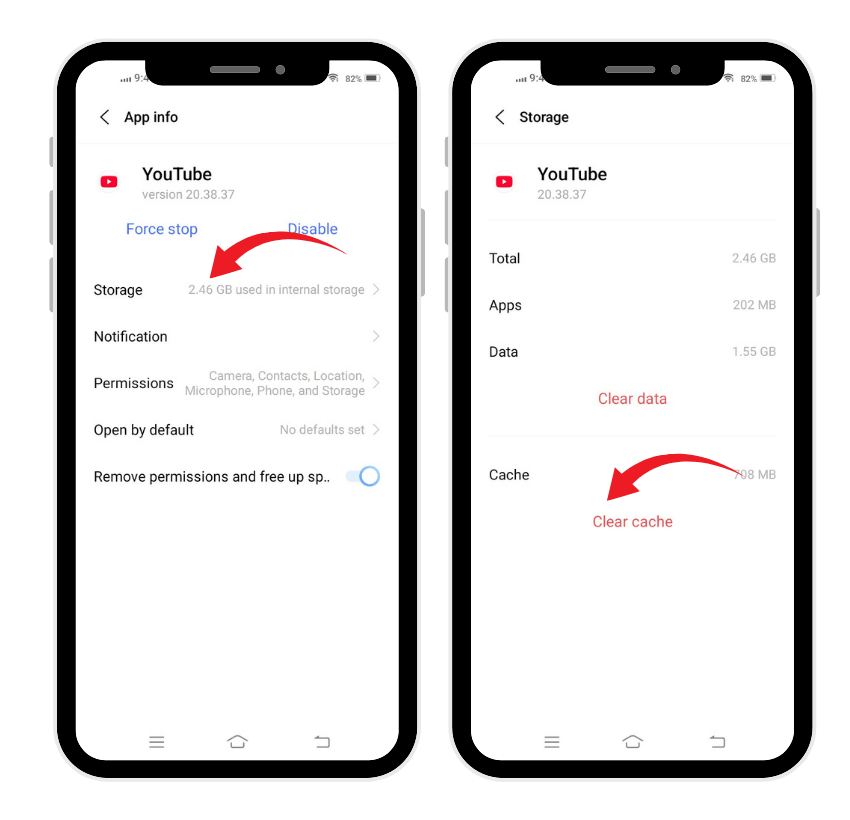
2. Clear App Cache and Data
Over time, the app stores temporary data and files to make loading faster. However, a corrupted cache may cause comments or other features to stop displaying correctly.
- Go to your phone settings.
- Open the “Apps” or “Application Manager” section.
- Select YouTube from the list.
- Tap Storage and choose Clear Cache.
If clearing the cache doesn’t work, you may also choose Clear Data (this will sign you out, but won’t delete your account or videos). Clearing app data gives YouTube a fresh start, often fixing problems like own comments not showing.
3. Restart Your Device and Relaunch the App
Sometimes, the issue isn’t with the app itself but with your device. Restarting resets background processes, clears temporary memory, and re-establishes your internet connection.
- Power off your phone completely.
- Wait at least 10 seconds.
- Turn it back on and reopen the YouTube app.
This simple fix helps if the comment section wasn’t loading due to system-level glitches or connection hiccups.
4. Reinstall the App if the Problem Persists
If the above steps don’t fix the issue, it may be time to completely reinstall the app.
- Uninstall the YouTube app from your device.
- Restart your phone once.
- Download and install the latest version again from the Google Play Store or App Store.
Reinstalling eliminates corrupted files and ensures you’re using the most recent version of the app.
Why Your Own Comments Don’t Show Up
It can be especially annoying when your own comments vanish. Reasons include:
- Spam filters: Posting identical text across multiple videos can get your comments flagged.
- Temporary restrictions: New accounts may be limited until they build trust.
- Blocked by creators: If a creator blocks you, your comments won’t appear publicly.
- Held for review: Creators can set filters in YouTube Studio that hold comments until approved.
If you think your account was flagged unfairly, reset visibility:
- Go to channel settings, choose to hide your channel, confirm, then unhide it.
- Restore visibility of videos in video manager.
- Ensure “Allow all comments” is active.
Advanced Steps to Resolve Persistent Problems
If the problem persists, try these deeper fixes:
- Reset channel visibility: Temporarily hide and then restore your channel.
- Uncheck/re-enable videos in YouTube Studio: This refreshes settings.
- Test posting from another device: If it works elsewhere, the issue is with your primary device.
- Disable Restricted Mode: This sometimes hides comments.
- Check browser extensions and security software: Certain tools can block scripts.
When to Contact YouTube Support
If you’ve tried everything and comments are still not showing, it may be time to reach out for help.
- Go to the official YouTube support or Help Center.
- Provide details about your issue with screenshots, the video link, and error messages if any.
- Submit a request explaining whether you can’t see comments on multiple videos or just one.
- Sometimes, temporary issues are solved only after Google confirms a fix.
💡 Pro Tip: Boost comments to create discussions, build credibility, and improve your video’s engagement signals.
Preventing Future Issues with Comments
To minimize the chances of running into comment problems again, consider the following proactive steps:
- Keep your browser and YouTube app updated: Updates often include important bug fixes and improvements that prevent glitches with loading or displaying comments.
- Clear browser cache and delete unnecessary stored data regularly – This helps avoid conflicts caused by outdated files or corrupted temporary data.
- Avoid spammy posting practices: YouTube’s algorithms may restrict or filter comments on your channel if suspicious activity is detected, so stick to authentic engagement.
- Monitor video settings in YouTube Studio: Double-check your comment permissions each time you upload or schedule a video to ensure they’re set as intended.
- Test comments on multiple devices: Viewing your video on both desktop and mobile can help confirm that comments are visible and functioning correctly for your audience.
By maintaining these habits, you can significantly reduce disruptions and keep your community conversations flowing smoothly.
Additional Tips for a Smooth Commenting Experience
To further improve your experience when engaging with YouTube comments, keep these tips in mind:
- Check if the creator has disabled comments: Sometimes, comments are intentionally turned off by the video owner, so the issue isn’t on your end.
- Use trusted extensions only: Browser extensions can interfere with how comments load. Stick to reliable ones and disable any unnecessary add-ons.
- Ensure your account is verified and active: A verified and regularly used account reduces the risk of restrictions that may block you from commenting.
- Restart your device after updates: This helps apply new changes correctly and clears out minor glitches that may disrupt YouTube’s performance.
- Be patient with temporary issues: YouTube occasionally experiences service-wide problems. In many cases, comment sections restore themselves without requiring action.
By following these additional steps, you’ll maintain a smoother, more reliable commenting experience on YouTube.
Conclusion
Dealing with YouTube comments not loading can be frustrating, especially when you’re eager to interact with your audience or join conversations. Fortunately, most issues come down to simple fixes like refreshing the page, updating the app, or clearing cached data. For persistent problems, adjusting YouTube Studio settings, checking restricted mode, or reinstalling the app often resolves the situation.
Remember, YouTube may also disable comments due to policies like age restrictions or community guidelines. By keeping your app and browser updated, clearing stored data regularly, and monitoring comment settings, you can prevent future disruptions. With these steps, you’ll maintain a smooth, reliable commenting experience and stay fully engaged with the YouTube community.
FAQs
Why is my comment section disabled on YouTube?
Your comment section may be disabled automatically due to YouTube’s policies, such as age restrictions, content marked for kids, or community guideline concerns. To re-enable comments, go to YouTube Studio edit your video settings and under “Comments” choose “Allow all comments” before saving the changes.
How do I enable comments on my videos?
To enable comments, sign in to YouTube Studio, select Content, then click the thumbnail of the video. Scroll down and click Show More. Under Comments and Ratings, select your preferred settings, such as “Allow all comments.” Finally, click Save to make the changes effective immediately.
Are YouTube comments public?
Yes, all comments on public YouTube videos are visible to everyone, and any user can reply to them. If you post using a Google account, your comment is linked to your profile. Comments on private or unlisted videos are visible only to authorized viewers.
What is Restricted Mode?
Restricted Mode is a YouTube feature that filters out potentially mature or inappropriate content. It is often enabled by parents, schools, or institutions to protect younger audiences. When turned on, some videos and comments may be hidden. Only administrators can lock this mode on shared networks.
How do I turn my YouTube comments back on?
To turn comments back on, log into YouTube Studio, open the video’s settings, and scroll to Comments and Ratings. Select “Allow all comments,” then click Save. This ensures that viewers can comment again. Always check if restrictions like “Made for Kids” are limiting engagement options.