Understanding how to see your followers on Facebook is essential for any Facebook user who wants to track their reach, measure engagement, and connect with their fans more effectively. Whether you’re managing a personal profile, a Facebook page, or a growing community, knowing how to find your followers list can help you shape your public posts strategy and manage your audience visibility.
In this detailed guide, you’ll learn how to view followers on both mobile and web versions of Facebook, how to manage who can follow you, and how to troubleshoot if you can’t find your followers tab or button.
Enhance audience engagement with Facebook video views, reactions, and followers to keep your brand active and visible.
How to Enable Followers on Facebook
To see your followers, you first need to make sure your followers option is turned on. By default, only friends can follow you. To change that:
- Open the Facebook app and tap the menu icon (☰) in the upper-right corner.
- Go to Settings & Privacy → Settings.
- Scroll down to Audience and Visibility → Followers and Public Content.
- Under Who Can Follow Me, select Public.
This allows anyone on Facebook to follow your personal profile and see your public posts in their feed.
Related: How to Enable Followers on Your Facebook Profile
How to See Your Followers on Facebook Mobile App
The Facebook app offers a convenient way to view your followers on your personal account or page. Follow these steps carefully:
For Personal Profiles:
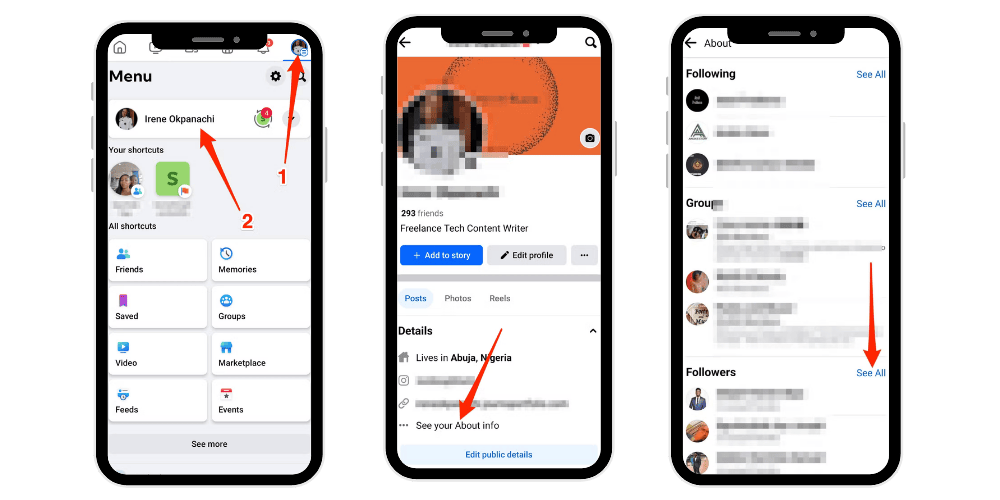
- Open Facebook App: Tap the Facebook icon on your phone and log in if necessary.
- Go to Your Profile: Tap the menu icon, then tap your profile picture or your name to open your Facebook profile.
- Access About Info: Scroll down and tap See Your About Info under your details section.
- Find Followers Section: Scroll until you reach the Followers section at the bottom.
- Tap See All: Tap See All to view the full list of followers on your profile.
If you don’t see the followers button, make sure your followers setting is set to “Public.”
For Facebook Pages:
If you manage a Facebook Page (for a brand, business, or community), you can view page followers separately from personal followers.
- Open the Facebook app.
- Tap the menu icon in the top-right corner.
- Tap the drop-down arrow beside your account name and switch to your page.
- Tap your page name to open it.
- Tap Followers to see the total number of people following your page.
This followers tab helps page admins track page fans, measure engagement, and understand their audience better.
💡 Pro Tip: Get noticed by growing Facebook followers that support and share your posts.
How to See Your Followers on Facebook Using a Computer
If you prefer a larger screen or the web version of Facebook, you can also view your followers easily from your desktop browser.
For Personal Profiles:
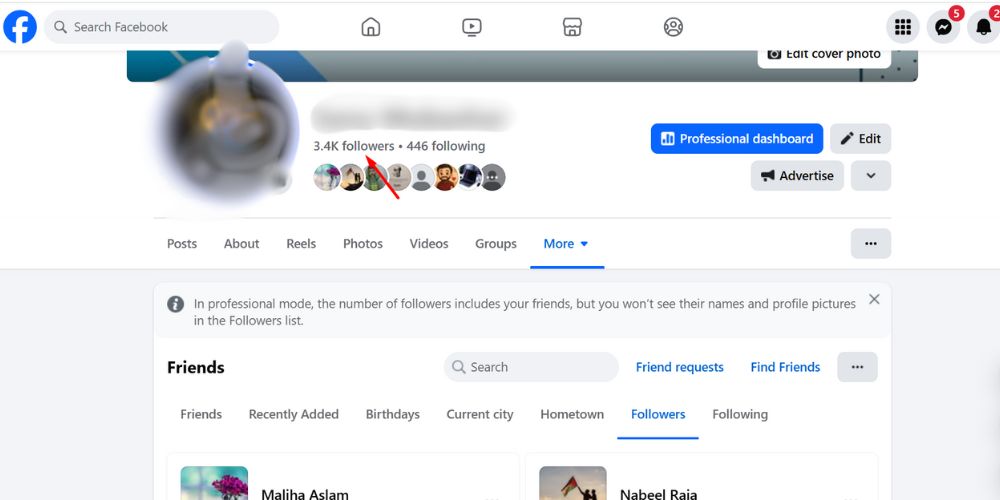
- Visit facebook.com and sign in to your account.
- Click your profile picture or name in the upper-right corner (or in the left sidebar).
- Click the Followers tab below your cover photo.
- Now open your followers list.
This section shows all people who follow your public posts, including those who are not on your friends list.
For Facebook Pages:
- Go to facebook.com.
- In the left sidebar, click See more → Pages.
- Select the page you manage.
- Click the Followers tab under your page name.
Here you can see your total number of followers, analyze page insights, and manage audience interaction.
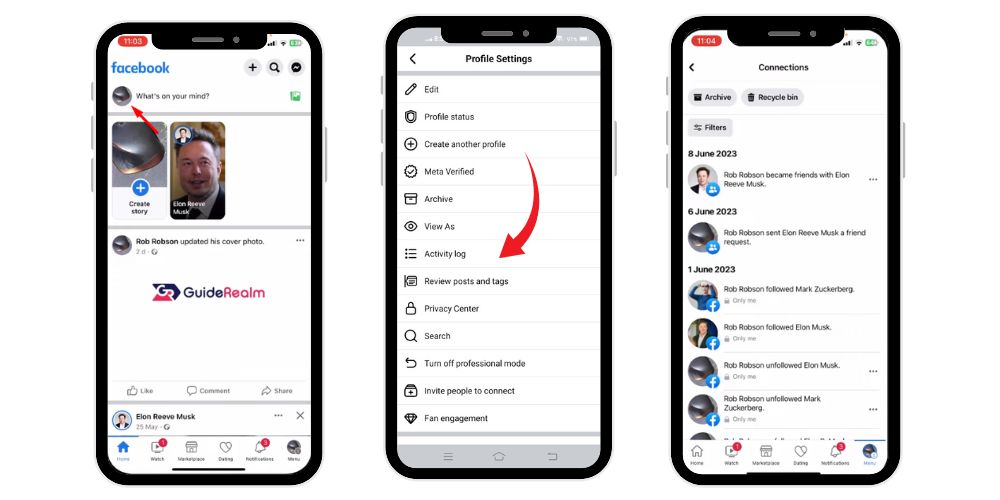
Alternative Way: View Followers via Activity Log
If you can’t find the followers tab directly, you can check through the Activity Log:
- Go to your Facebook profile.
- Tap the three dots (⋯) next to Edit Profile.
- Select Activity Log.
- Tap Connections, then select Followers or People Who Followed You.
This method gives a record-based view of who started following you recently.
Why You Should Track Your Facebook Followers
Regularly reviewing your followers list helps you understand your audience, tailor content to your fans’ interests, and strengthen your online community. Here’s why it’s important:
- Audience Insights: You’ll see what type of Facebook user engages with your public posts.
- Content Planning: You can create posts that appeal to people already interested in your content.
- Follower Growth: By checking how many followers you have, you can track whether your online influence is increasing or declining.
- Spam Detection: Identifying inactive or suspicious followers helps keep your audience clean.
Related: How to Turn Off Comments on Facebook Post?
If You Can’t See Your Followers
Sometimes, you may not see your followers button or list due to one of these reasons:
- Privacy Settings: You haven’t made your follower option public.
- Cache Issues: Temporary files may block updates. Clear your app cache or try another browser.
- Inactive Accounts: Old or deleted followers no longer appear on your list.
- App Version: Update your Facebook app to ensure you’re using the latest version.
If none of these work, reinstall the Facebook app or access your profile through the web version.
Tips to Increase Facebook Followers
While checking followers is helpful, growing your Facebook fans is even more valuable. Here are simple steps:
- Post regularly and make sure your best posts are public.
- Engage with people through comments, replies, and reactions.
- Use visuals like videos, photos, and reels.
- Collaborate with other creators or public figures.
- Join Facebook groups related to your interests.
Consistency and genuine engagement help your followers list grow naturally.
How to Separate Facebook Friends and Followers
Your friends and followers lists are managed differently, though they overlap. You can separate them easily:
- Visit your profile page.
- Click Friends tab → Followers.
- Compare lists to see who follows you without being your friend.
This separation is helpful for public figures who receive many follows but keep their friends list private.
Conclusion
Knowing how to see your followers on Facebook helps you stay aware of who engages with your posts and how your audience grows over time. Whether you use the Facebook app or web version, you can quickly navigate to your followers tab, review the full list, and adjust settings to manage visibility.
Your Facebook profile is more than a space for friends—it’s a platform where fans, bloggers, and public figures can share ideas, connect with communities, and build meaningful engagement.
By checking your followers regularly, optimizing your public posts, and keeping your account settings updated, you’ll maintain better control over your audience and enjoy a more personalized Facebook experience.
💡 Pro Tip: Increase Facebook Page fans to create stronger engagement and build lasting brand loyalty.
FAQs
How do I check my followers on Facebook?
Go to your Facebook profile, tap About info, and scroll to the Followers section. Click See All to view your full followers list. On desktop, open your Friends tab and select Followers.
Why can’t I see who follows me on Facebook?
You might not have the followers option enabled. Go to Settings & Privacy → Settings → Followers and Public Content, then set Who can follow me to Public. This makes your followers visible.
Where can I find follower settings on Facebook?
Follower settings are under Settings & Privacy → Settings → Audience and Visibility → Followers and Public Content. Here, you can control who can follow you and who can see or comment on your public posts.
Why can’t I see all of my followers on my Facebook page?
Some followers may have privacy restrictions or deactivated accounts. Only active followers who publicly follow your page appear in the followers tab. Refresh or use the web version for a complete view.
How do I know how many followers I have on Facebook?
Visit your profile or page, and look below your profile picture or page name. You’ll see the total number of followers displayed beneath your name or in the Followers section.