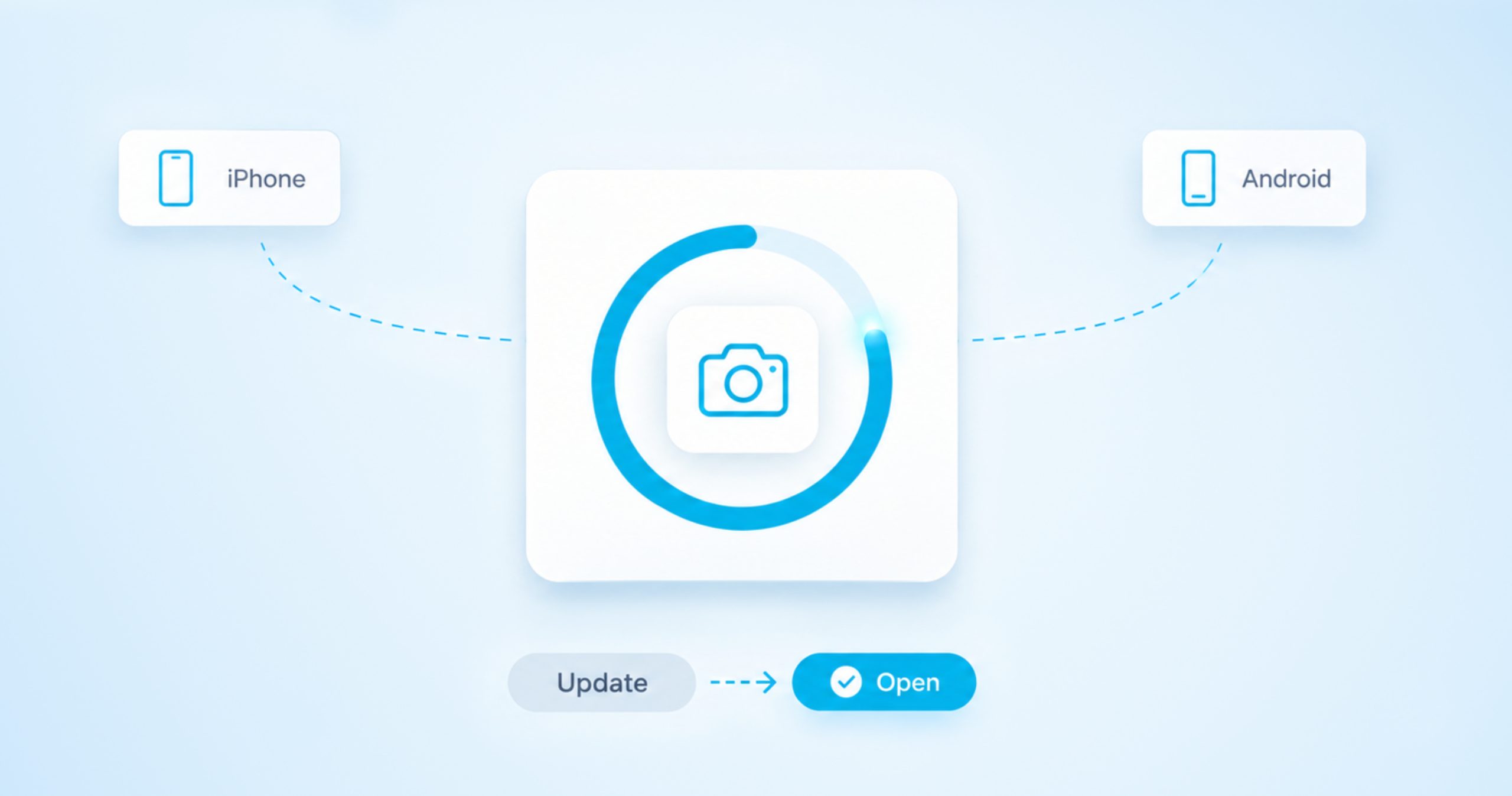
Facebook only has a true off switch for comments on group posts. If you’re an admin, a moderator or the person who wrote the post, you can open the post’s menu and choose Turn off commenting. Posts on your own profile and on a Page work differently, because Facebook lets you limit who can comment rather than switch comments off.
The closest you can get on a profile or Page post is the “Who can comment on your post?” menu. Pick Profiles and Pages you mention, and only the people you tag in the post can comment. If you don’t mention anyone, nobody else gets a comment box. This guide shows each control, what it changes and what to do about comments that are already there.
| Where the Off Switch Is Your profile: open the three dots on the post, choose Who can comment on your post? and pick Profiles and Pages you mention. Your Page: use the same menu on the Page post. It works on regular posts, but not on ads or boosted posts. A group: open the three dots on the post and choose Turn off commenting. Admins, moderators and the post’s author can do this. |
Expand Your Facebook Page
Grow your business or personal page with high-quality likes, shares, and followers.
Limit Comments on a Post on Your Profile
By default, everyone can comment on your public posts, even people who don’t follow you. You can change that for one post at a time or for all your public posts at once. Posts shared with a smaller audience follow a different rule, so the right fix depends on who can see the post.
Change One Public Post
These steps work on a computer and in the Facebook app. In the app the menu may say “this post” instead of “your post”, but the options are the same.
- Go to the public post on your profile.
- Click or tap the three dots in the top right of the post.
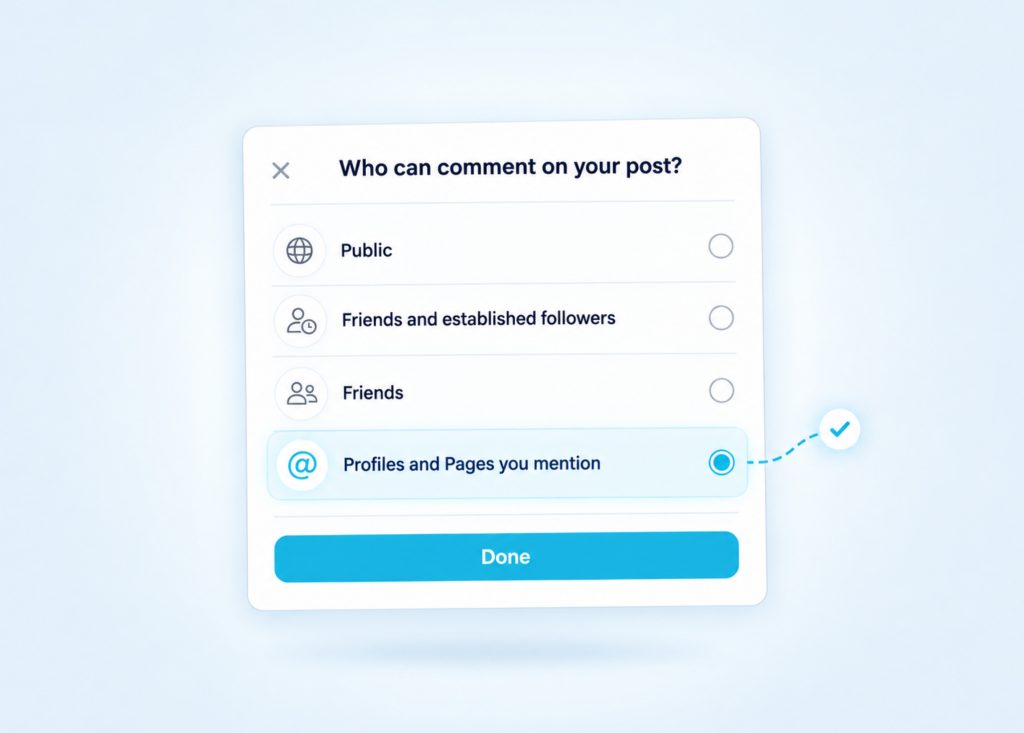
- Choose Who can comment on your post?
- Pick who is allowed to comment.
- Click or tap Done.
You’ll see four options. Public lets anyone comment. Friends and established followers covers your friends plus people who have followed you for more than 24 hours, which helps keep brand-new accounts out of a busy thread. Friends limits comments to your friends on Facebook. Profiles and Pages you mention means only the people and Pages you tagged in the post can comment, which is the tightest setting Facebook offers.
This choice only changes the post you’re editing. It doesn’t touch your other public posts or the default you set in your settings. The same option also exists for public reels on your profile, so you can limit comments on a reel the same way.
When someone outside your chosen group views the post, they won’t see the Comment button under it. Instead, they’ll see that you’ve limited who can comment, so people aren’t left guessing why they can’t reply.
When the Post Isn’t Public
If a post is shared with Friends or another smaller audience, Facebook uses that audience to decide who can like it and comment on it. That’s why the “Who can comment on your post?” option is meant for public posts. People who can’t see the post can’t comment on it.
To narrow the commenters on a post like this, narrow the audience instead. Click or tap the small audience icon next to the date on the post and pick a smaller group, for example Friends, or Only me if you want to hide the post from everyone else. Changing the audience changes who can see the post as well as who can comment, so keep that in mind before you switch it.
Set a Default for All Your Public Posts
If you post publicly a lot, you can set one rule for every public post instead of fixing them one by one. On a computer, the steps are short.
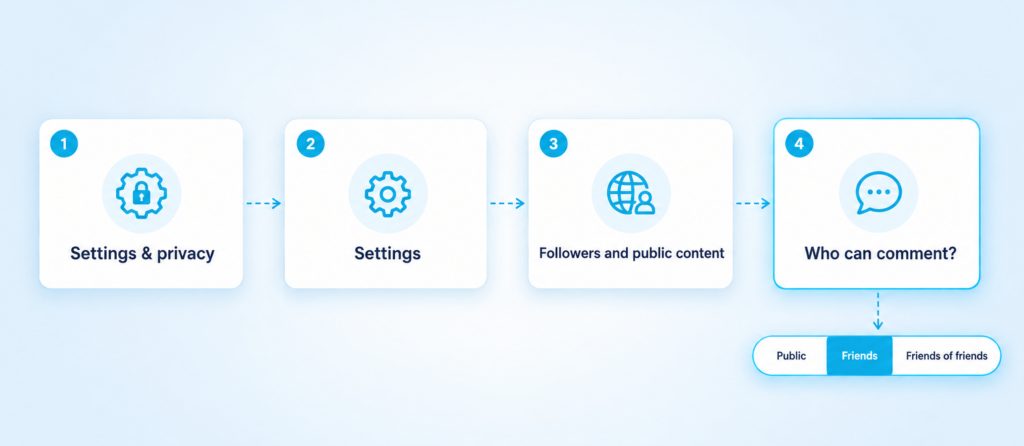
- Click your profile picture in the top right of Facebook.
- Choose Settings & privacy, then Settings.
- Under Audience and visibility, click Followers and public content.
- Find Who can comment on your public posts? and pick an option.
You can choose Public, Friends or Friends of friends. Public includes everyone. Friends includes your friends, and if you tag someone, that person and their friends can comment too. Friends of friends includes your friends and their friends. This is the same Followers and public content page where you choose who can follow you, and our guide on how to see your followers on Facebook shows where that list lives.
Limit Comments on a Facebook Page Post
Posts from a Facebook Page are public, so anyone who can see the Page can comment unless you change it. You make that change from the same menu as on a profile. Open the Page post, click or tap the three dots in its top right and choose Who can comment on your post?
The list for Pages is slightly different. You can choose Public, Established followers, Profiles and Pages you follow, or Profiles and Pages you mention. The last one is again the strictest setting, so pick it if you want a post with no new comments from the public.
There are two limits to know. The option isn’t available for ads or boosted posts, so a promoted post stays open to comments. It also doesn’t apply if you used custom targeting by location or age on the post. On the posts you leave open, a starter set of Facebook comments can give early visitors a conversation to join.
Want your Facebook page to actually get seen?
Real likes. Real shares. No bots, no shadowbans, ever.
See our Facebook servicesTurn Off Commenting in a Facebook Group
Groups are the one place where Facebook gives you a real off switch. Group admins and moderators can turn off comments on any post in the group. Members can also turn off comments on posts they wrote themselves.
- Go to the group and find the post.
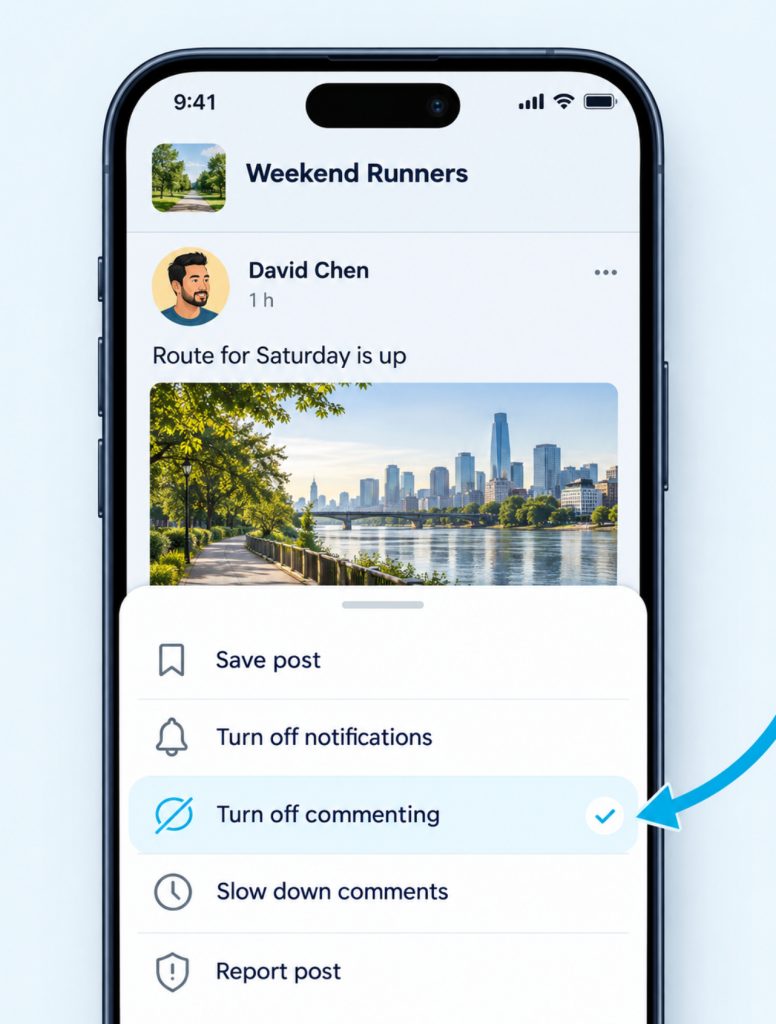
- Click or tap the three dots on the post.
- Choose Turn off commenting.
Once it’s off, no one can add a new comment to that post. To open the post again, go back to the same menu and choose Turn on commenting. In some groups, admins and moderators can also turn off replies to one comment, but that option isn’t available in every group yet.
Slow Down Comments Instead
Sometimes you don’t want to stop a discussion, only calm it down. Group admins and moderators can open the post’s menu and choose Slow down comments. Each person can then post only one comment every five minutes. Admins and moderators can still comment as normal, and choosing Stop slowing comments in the same menu brings the post back to normal speed.
Deal With Comments Already on the Post
Limiting comments controls who can add new comments. It doesn’t remove the ones that were posted before you changed the setting. For those, use the tools below.
Hide or Delete a Comment
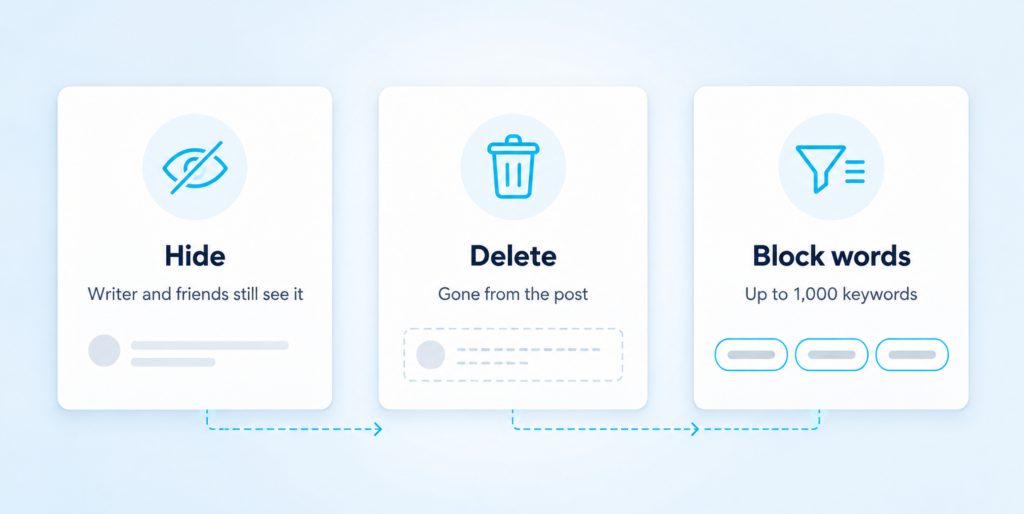
Open the three dots next to the comment and choose to hide it or delete it. Hiding a comment keeps it visible to the person who wrote it and their friends, but no one else sees it. Any replies to that comment are hidden too. That makes hiding a quiet option, because the writer usually won’t notice that anything changed.
Deleting removes the comment from the post completely. Use it for comments you don’t want anyone to see again, including the person who wrote them. If a friend says a comment has vanished on their side, our guide to why you can’t see comments on Facebook covers the other reasons that happens.
Block Words Before They Appear
You can also stop certain comments before anyone sees them. On your profile, go to Settings, then Followers and public content, and find Hide comments containing certain words from your profile. Add the words, phrases or emoji you want to block. You can add up to 1,000 keywords in any language, and Facebook also hides common variations of them.
This works on content you created, such as your own posts. Comments with a blocked word are hidden in the same way as a comment you hide by hand. The writer and their friends can still see them, and you can unhide one if it was caught by mistake.
Pages have their own filter. In your Page’s settings, under Followers and public content, you can switch on Hide posts and comments with profanity. It’s a simple way to clean up a Page that gets a lot of rough language.
Facebook Comment Questions
Can I turn off comments on all my Facebook posts at once?
There’s no single switch that turns off comments everywhere. For your public posts, the closest option is the setting under Followers and public content, where you can limit comments to Friends or Friends of friends. Posts with a smaller audience already limit comments to that audience. In groups, you turn off commenting one post at a time.
Will people know I limited comments on my post?
People who are outside your chosen comment group will notice. They won’t see the Comment button, and they’ll see a note that you’ve limited who can comment. People inside the group can keep commenting as usual.
Why don’t I see “Who can comment on your post?”
The option is for public posts, so it won’t show on a post shared with Friends or a custom audience. On a Page, it’s missing for ads and boosted posts. In a group, look for Turn off commenting instead, and keep in mind you can only change these settings on posts you control.
Can I turn off comments on someone else’s post?
No, you can’t change who comments on a post that belongs to someone else. The exception is a group you help run. Group admins and moderators can turn off or slow down comments on any member’s post in that group.
Match the Control to the Post
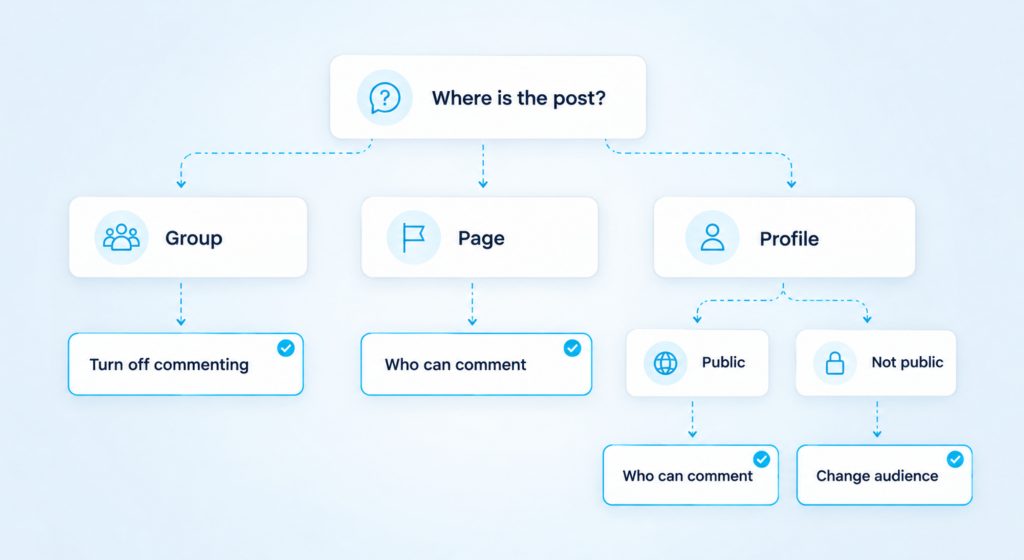
Start by asking where the post lives. On your profile or a Page, open the three dots and choose Profiles and Pages you mention when you want the tightest limit. Use the setting under Followers and public content when you want the same rule for every public post. In a group, Turn off commenting gives you the real off switch.
For comments that are already there, hide the ones you want out of sight, delete the ones that should go for good and block the words you keep seeing. Every one of these settings can be changed back later, so you can open comments again whenever you’re ready.